
Offline PDF AI Assistant for Windows: What It Is and Why More People Are Switching to It
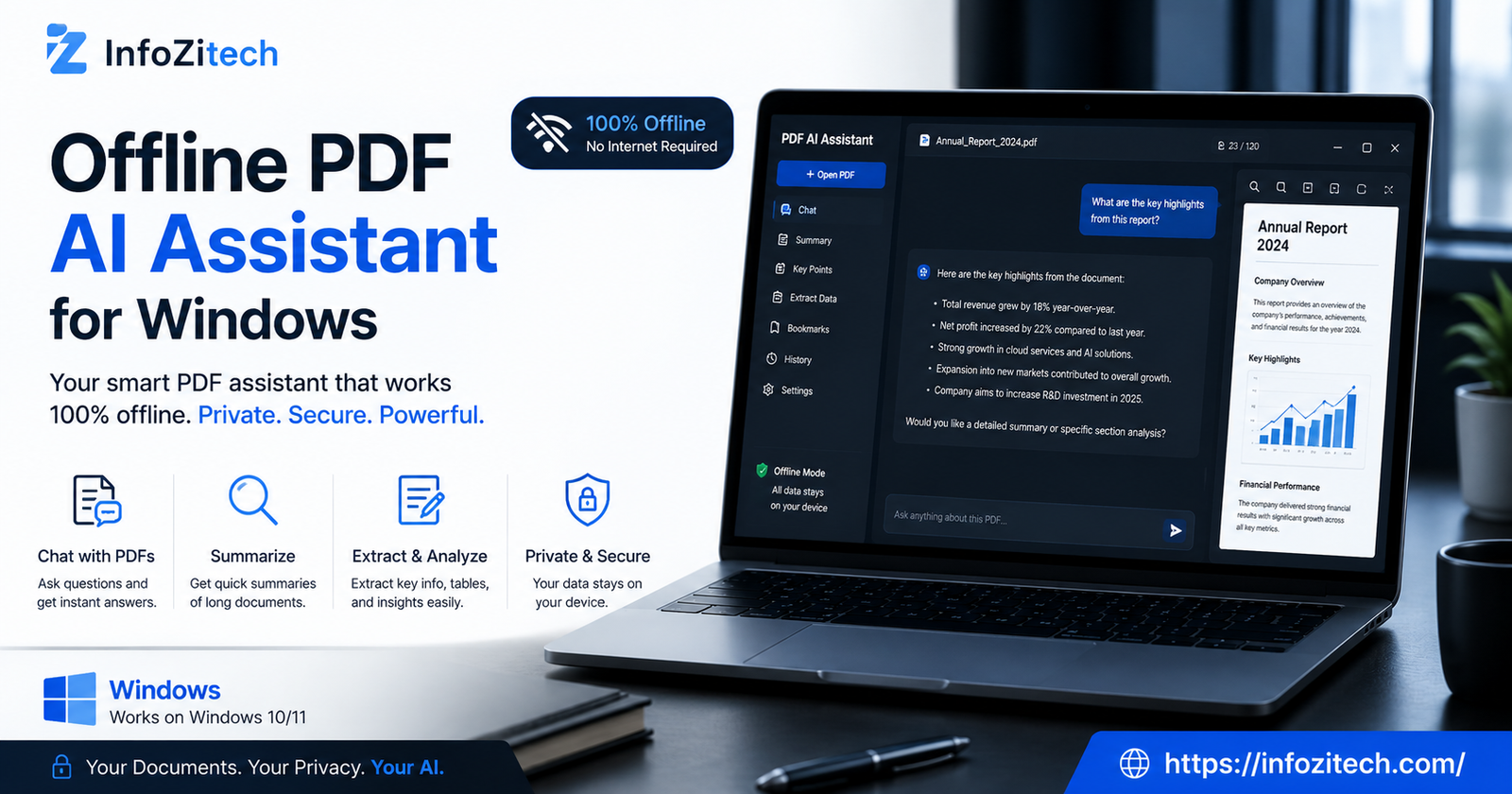
There’s a specific kind of annoyance that comes from having a 40-page contract open and needing to know one thing buried somewhere on page 27. You could Ctrl+F it, sure, if you know the exact wording. Half the time you don’t. So you skim. And skim some more. And by page 15 you’ve forgotten what you were even looking for in the first place.
This is basically why AI-assisted PDF tools took off so fast — ask a question, get pointed to the actual answer, done. But there’s a catch a lot of people run into once they actually try one: most of these tools want to upload your document to some server somewhere first. Fine for a public research paper. Less fine for a signed lease, a medical report, or anything with your name and address printed at the top. That’s the gap an offline PDF AI assistant for Windows fills — same kind of usefulness, minus the part where your files leave your machine.
This piece covers what these tools actually do, why “offline” matters more than people think, and how to pick one without getting burned by a bad install.
Why People Are Looking for Offline PDF Tools Now
A few years back, nobody really asked whether their PDF tool was cloud-based. It just was, and that was fine, because most PDFs weren’t that sensitive anyway. Things shifted. People started running AI over tax documents, employment contracts, medical records, court filings — stuff that genuinely shouldn’t be sitting on a third-party server, even briefly, even if the company swears it deletes everything after processing.
And honestly, some of it isn’t even about paranoia. Certain workplaces flat-out ban uploading client documents to external AI tools. Lawyers, healthcare admins, HR departments — plenty of them are contractually required to keep files local. An offline tool isn’t a nice-to-have for these people. It’s the only option that’s actually allowed.
The Trust Problem With Cloud-Based PDF Tools
Most cloud PDF assistants are upfront about what happens to your file, technically. There’s a privacy policy, there’s language about encryption, there’s a line about not training models on your data (usually). But here’s the thing — you’re still trusting a company’s word, and their servers, and whatever happens if there’s a breach next year. None of that is a knock on any specific tool. It’s just the nature of sending something off your device.
Where “Offline” Actually Helps
Offline tools sidestep the whole question. If the AI model runs locally, on your own hardware, nothing about the file ever has to leave your laptop. No upload progress bar, no “processing on our servers,” none of it. Whatever you ask the AI, whatever summary it spits back, all of that happens inside your machine, which is a genuinely different guarantee than a privacy policy is.
What Is an Offline PDF AI Assistant, Exactly?
Basically it’s a piece of software — usually a standalone app for Windows, sometimes a plugin bolted onto an existing PDF reader — that runs a language model directly on your computer. You open a PDF, ask it something in plain language, and it reads through the document and answers you, all without touching the internet once processing starts.
How It’s Different From a Regular PDF Reader
A normal PDF reader lets you scroll, zoom, maybe search for exact text matches. That’s about it. An AI-powered one goes further — you can ask “what’s the termination clause say” and it’ll actually find and explain it, even if the document never uses the word “termination” directly. It understands the content, not just the characters on the page.
How It’s Different From Cloud AI Tools
Functionally, a lot of it looks the same on the surface — you’re chatting with a document, getting summaries, pulling out key points. The difference is entirely under the hood. Cloud tools send your file (or at least its text) to a remote server where a big model processes it. Offline tools run a smaller, locally-hosted model right there on your CPU or GPU. Slightly less horsepower sometimes, but your document genuinely never leaves the building.
Core Features Worth Looking For
Not every offline tool is built the same, and some cut corners in ways that matter. Here’s what to actually check before you commit to one.
Document Summarization
The basic ask — condense a 50-page report into a few paragraphs, or a single-page abstract, whatever length you need. Good tools let you adjust the summary depth instead of just giving you one fixed output.
Natural Language Q&A
This is really the whole point of these tools. Type a plain question, get a plain answer, pulled from somewhere in the actual document rather than a generic response. Better tools will also tell you which page the answer came from, so you’re not just trusting it blindly.
OCR for Scanned Documents
A shocking number of “PDFs” are really just scanned images with no selectable text underneath. If a tool can’t run OCR first, it can’t actually read a scanned lease or an old scanned medical form, no matter how good its AI is. Check this one specifically — it trips up more tools than you’d expect.
Model Size and Hardware Requirements
Offline models run locally, which means your hardware matters a lot more than it does with a cloud tool. Some assistants ship a lightweight model that runs fine on a five-year-old laptop. Others need a decent GPU, or they’ll crawl. Worth checking the system requirements before you download anything, especially if you’re on an older machine.
Annotation and Export Options
Once you’ve got answers or a summary, can you actually do something with it? Export to a text file, copy with citations, highlight the relevant passage directly in the PDF — small stuff, but it’s the difference between a tool you actually use daily and one you open twice and forget about.
How Offline PDF AI Assistants Work, Roughly
When you open a document, the tool first has to extract usable text. If it’s a normal text-based PDF, that’s quick and easy. If it’s scanned, OCR kicks in first, which takes longer, sometimes noticeably longer depending on page count.
Then, whatever question you type gets processed by a language model running locally on your device. This model was already downloaded and installed when you set the app up — some are just a few hundred megabytes, others are several gigabytes, depending on how capable they are. The model searches through the document’s text, finds the relevant chunk, and generates an answer based on it. No internet connection required at any point in that chain, assuming the app was already installed and the model already downloaded ahead of time.
Some tools do offer an optional cloud mode too, for when you want a more powerful model and don’t mind the tradeoff. The good ones make that switch clearly optional, not the default.
Who Actually Needs This
It’s easy to assume offline AI tools are just for the security-obsessed. In practice, plenty of ordinary situations call for one.
Legal and Compliance Professionals
Contracts, NDAs, discovery documents — a lot of this stuff has explicit confidentiality requirements attached, sometimes contractually, sometimes just by common sense. An offline assistant lets someone in this line of work get AI help without violating a client agreement or firm policy.
Healthcare Workers Handling Records
Medical documentation is about as sensitive as personal information gets, and regulations around it are strict for good reason. Running a patient file through a random cloud AI tool is a genuinely bad idea in most jurisdictions. Offline keeps that data where it’s supposed to stay.
Students and Researchers With Large PDFs
Not every use case here is about secrecy, honestly — sometimes it’s just convenience. A student working through a 300-page textbook chapter by chapter doesn’t necessarily care about privacy, they just want fast summaries without an internet connection cutting out mid-session, or without hitting some free-tier upload limit halfway through finals week.
Anyone Working Without Reliable Internet
Some people just don’t have great connectivity, whether that’s rural areas, frequent travel, or an office with a locked-down network. An offline tool works the same whether you’re on fiber or on nothing at all, which matters more than people give it credit for until they actually need it.
Setting One Up Without Wasting an Afternoon
Getting one of these running doesn’t have to be complicated, though a few steps trip people up.
Step 1 – Check Your Hardware First
Before downloading anything, glance at the system requirements. Some models need 8GB of RAM minimum, others want a dedicated GPU to run at a reasonable speed. Skipping this step is how people end up with an app that technically works but takes ninety seconds to answer a simple question.
Step 2 – Download the Right Model Size
Most offline tools let you choose between a smaller, faster model and a larger, more accurate one. If your laptop’s on the older side, start small. You can usually upgrade later once you know the tool’s actually useful to you.
Step 3 – Test It on a Document You Already Know Well
Don’t start with your most important file. Run it against something you’ve already read closely, so you can actually judge whether its summaries and answers are accurate, before trusting it with anything that matters.
Common Questions People Have
A few things come up again and again once people start actually looking into this.
Is Offline AI as Good as Cloud AI?
Not always, no, and it’s worth being honest about that upfront. Cloud models tend to be larger and more capable simply because they’re not limited by what fits on your laptop. Offline models have gotten a lot better recently though, and for straightforward summarization and Q&A tasks, the gap has narrowed quite a bit. For extremely complex or nuanced documents, cloud tools might still edge ahead.
Does Offline Mean No Updates Ever?
No — the app itself can still update normally over the internet, same as any other software. “Offline” refers specifically to how your documents get processed, not whether the software itself can ever connect to anything.
Will It Slow Down My Computer?
Depends on your hardware and the model size you picked. A lightweight model on a modern laptop barely registers. A large model on an aging machine, though, can make things sluggish while it’s actively processing. This is exactly why checking requirements before downloading matters so much.
Final Thoughts
An offline PDF AI assistant for Windows solves a pretty specific problem — getting real AI help with your documents without handing them over to someone else’s server in the process. It’s not going to replace every cloud tool out there, and for some tasks it probably shouldn’t. But for contracts, medical records, anything with your personal information plastered across it, having an option that keeps everything local isn’t just a nice extra. For a lot of people, it’s genuinely the only version of this technology they can actually use.
Start with your hardware, pick a model size that matches it, and test the thing on something low-stakes before you trust it with anything important. Once it’s set up properly, it just works quietly in the background — no upload bars, no wondering where your file ended up, no compliance headache. Just answers, pulled straight from the page, staying exactly where they started.




2 thoughts on “Offline PDF AI Assistant for Windows: What It Is and Why More People Are Switching to It”