
AI Browser Workflow for Daily Productivity
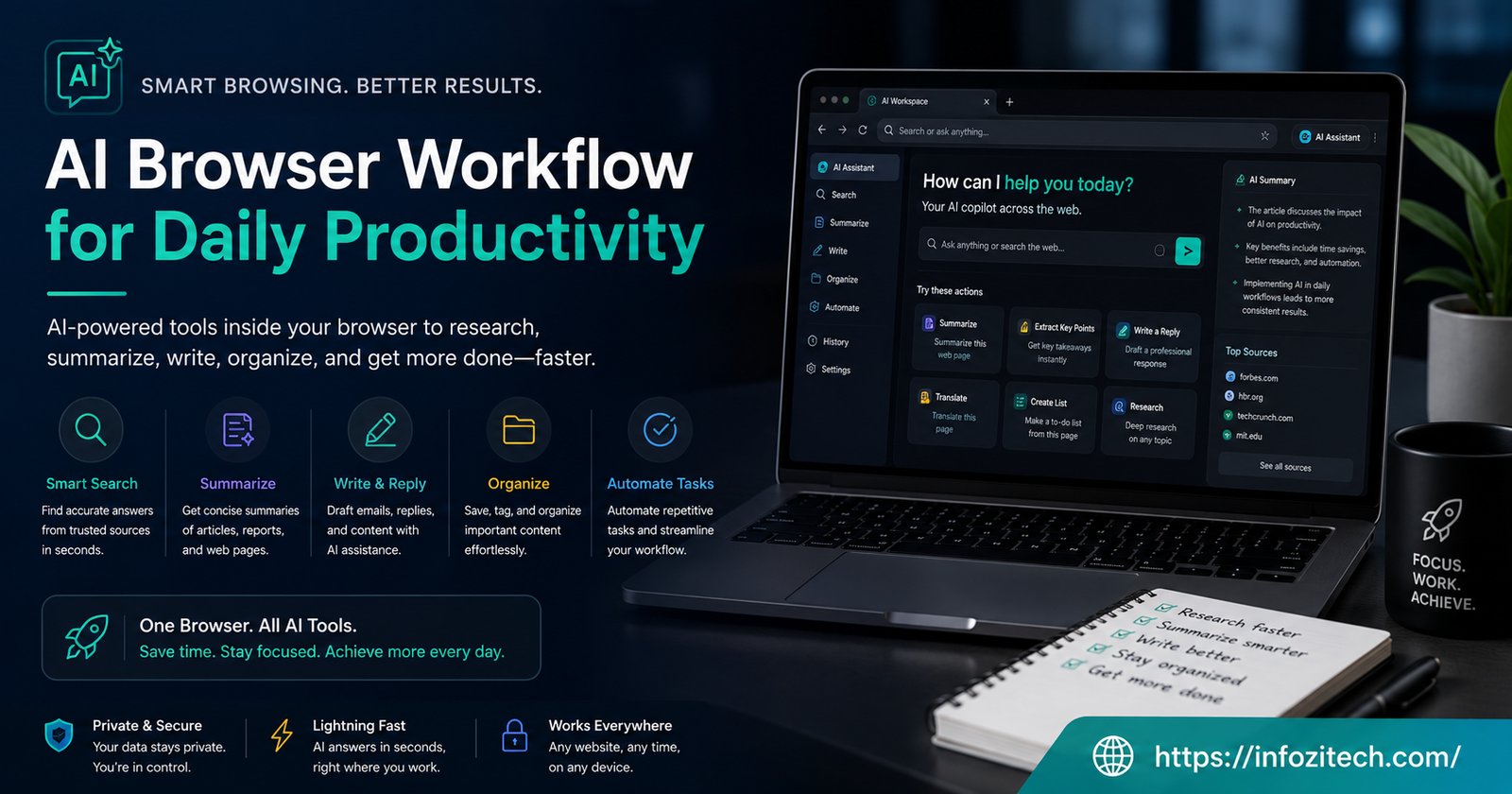
There was a stretch, maybe eight months ago, where I had eleven tabs open at 9 am and by lunch it was closer to thirty. Three of them were the same article, open twice because I’d forgotten I already had it there. One was a half-written email I never sent. That’s not a workflow. That’s just… tabs, existing, judging me quietly from the top of the screen. And I think a lot of people are living some version of that right now, except now there’s AI baked into the browser itself, and half of us haven’t actually figured out what to do with it beyond asking it to summarize one article every so often.
So this isn’t a “here are 15 AI browser extensions, go install them all” piece. Those exist already, plenty of them, and they mostly leave you with more tabs, not fewer. What I want to get into is the actual workflow part — how the AI stuff built into browsers now (or bolted onto them) can genuinely restructure a normal workday instead of just being a party trick you show your coworker once and never touch again.
Why the Browser Is the Right Place for This, Actually
Because That’s Where the Work Already Happens
Most knowledge work, if you’re honest about it, happens inside a browser tab. Email’s a tab. The doc you’re editing is a tab. The project tracker, the calendar, the research you’re doing for a report — tabs, all of it. So putting AI directly into that environment, instead of making you tab out to a separate chat window, cuts out a step that seemed small until it wasn’t. Every alt-tab is a tiny tax on your attention, and they add up over a day in a way that’s hard to notice until you actually pay attention to how often you’re doing it.
The Difference Between “AI in the Browser” and “an AI Browser Workflow”
Here’s a distinction that matters more than it sounds like it should. Having an AI tool available in your browser — a sidebar chat, an extension, whatever — is not the same thing as having a workflow. A workflow means the AI is doing something at a specific, repeated point in your day, not just sitting there waiting for you to remember it exists. I had Claude’s browser extension installed for about three weeks before I actually built anything resembling a routine around it, and the difference in how useful it felt was honestly kind of stark.
Building the Morning Pass
Triaging Before You Actually Start Working
The first real workflow worth setting up is a morning triage pass, and it’s simpler than it sounds. Before diving into actual work, have the AI assistant scan your inbox and flag what genuinely needs a response today versus what can sit. Not “read every email for me,” which sounds nice but usually just adds a summarization step nobody asked for — more like, “tell me which of these twelve emails actually need me today, and draft a two-line reply to the three that are simple asks.”
This alone probably saves fifteen, twenty minutes most mornings. Doesn’t sound like much written down like that, but it compounds across a week in a way that’s easy to underestimate until you actually track it for a few days.
Pulling the Day Into One Place
A second piece, and one I didn’t think I’d use as much as I do: asking the browser assistant to pull together what’s actually happening today — meetings from the calendar tab, any docs linked in those meeting invites, maybe a quick note on what came up in yesterday’s messages that’s still unresolved. It’s not magic; it’s mostly just aggregation, but doing that aggregation yourself every morning is exactly the kind of small repeated task that quietly eats your best hours if you let it.
Research Without the Fifty-Tab Spiral
Letting It Do the First Pass
Research is where this stuff earns its keep the most, in my experience. Old way: open a search engine, click into six or seven results, skim each one, keep three tabs open because you’re not sure yet which one’s actually useful, forget why you opened two of them by the time you circle back. New way: point the browser AI at a question, let it pull from multiple sources in one pass, and get a synthesized answer with links back to where it came from — so you can verify instead of blindly trusting it, which matters more than people give it credit for.
The tab count drops dramatically doing it this way. Not to zero, you’ll still want to actually read the source that matters most, but you’re not accumulating fifteen half-read pages just to answer one question anymore.
Staying Honest About What It Gets Wrong
Worth saying plainly: it gets things wrong sometimes, or it flattens nuance that actually mattered, or it confidently cites something that’s slightly off from what the source actually said. Building this into a workflow doesn’t mean turning off your own judgment. If anything, the workflow that actually works long-term is one where you treat the AI’s research pass as a first draft of understanding, not a finished answer, and you spend your saved time double-checking the parts that actually matter instead of skipping that step entirely because it felt thorough.
Writing and Drafting Inside the Tabs You’re Already In
Drafts That Don’t Start From a Blank Page
A lot of the friction in daily writing — emails, quick reports, Slack messages that need to sound less annoyed than you actually are — comes from the blank page problem. Having an assistant sitting right there in the browser, able to draft a first pass based on a few bullet points you type out, means you’re editing instead of originating. Editing is faster. Editing is easier on a tired brain at 4 pm. That’s most of the actual productivity gain here, honestly, not some dramatic new capability — just removing the blank-page moment from your day, over and over, dozens of small times that add up.
Keeping Your Own Voice in It
The risk, and it’s a real one, is that everything starts sounding the same after a while — that slightly too-smooth, slightly generic tone that AI drafts tend toward if you just accept them as-is. The workflow that holds up over time involves always doing a pass afterward where you specifically ask: does this sound like something I’d actually say? Cut the parts that don’t. It takes maybe thirty extra seconds per message, and it’s the difference between using AI as a tool and slowly outsourcing your own voice to it, which is not a trade worth making even for the time saved.
Handling the Repetitive Stuff That Never Feels Worth Automating
The Small Tasks That Add Up Anyway
There’s a category of task too small to ever feel worth setting up automation for — filling out the same kind of form for the third time this week, checking a few sites for updates, copying info from one tab into another. Individually, none of these justify the effort of automating. Collectively, across a month, they’re a real chunk of time. An AI browser assistant that can handle these directly, actually clicking and filling and navigating rather than just answering questions, changes the math on whether it’s worth setting up at all — because the setup cost is basically zero, you’re just asking it to do the thing instead of doing it yourself.
Where to Draw the Line
Not everything should go here, and it’s tempting to hand off more than you should once it starts working well. Anything involving money moving, anything sent externally under your name without a review step, anything genuinely high-stakes — keep a human check in the loop, meaning you, actually reading it before it goes out. The workflow breaks down fast if you start trusting it with things that need your actual judgment applied at the final step, not just your initial instructions.
Fitting This Into an Actual Day, Not a Theoretical One
It Doesn’t Need to Be Elaborate
The mistake people make setting this up — and I made it too, initially — is trying to build some elaborate system with a dozen different triggers and rules before actually using any of it for real. Start with one thing. The morning triage, say. Use just that for a week, notice where it’s actually saving time versus where it’s just novelty, then add the next piece once the first one’s actually a habit and not a thing you’re consciously remembering to do.
The Point Where It Stops Feeling Like a Tool
Somewhere around week three or four of doing this consistently, it stops feeling like “using an AI tool” and starts just feeling like how your browser works now, the way autocomplete stopped feeling remarkable a decade ago. That’s honestly the marker that the workflow’s actually taken hold rather than being a thing you’re trying out. If you’re still consciously thinking “oh right, I should ask the AI to do this” every single time, it hasn’t become a workflow yet — it’s still a novelty you’re deliberately reaching for.
Wrapping This Up
None of this requires exotic setup or a dozen extensions layered on top of each other. Mostly it’s about picking two or three specific, repeated moments in your day — the morning inbox check, the research spiral, the blank-page email — and letting the browser’s AI actually handle the first pass of each one, while you keep your judgment in the loop for anything that matters. It’s not going to make your day frictionless, and anyone promising that is overselling it. But shaving real minutes off a handful of daily annoyances, done consistently rather than occasionally, adds up to something that actually feels different by the end of a month. Start with one habit. Let it actually become one before adding the next.







2 thoughts on “AI Browser Workflow for Daily Productivity”