
Lightweight AI Tools for Low RAM PCs
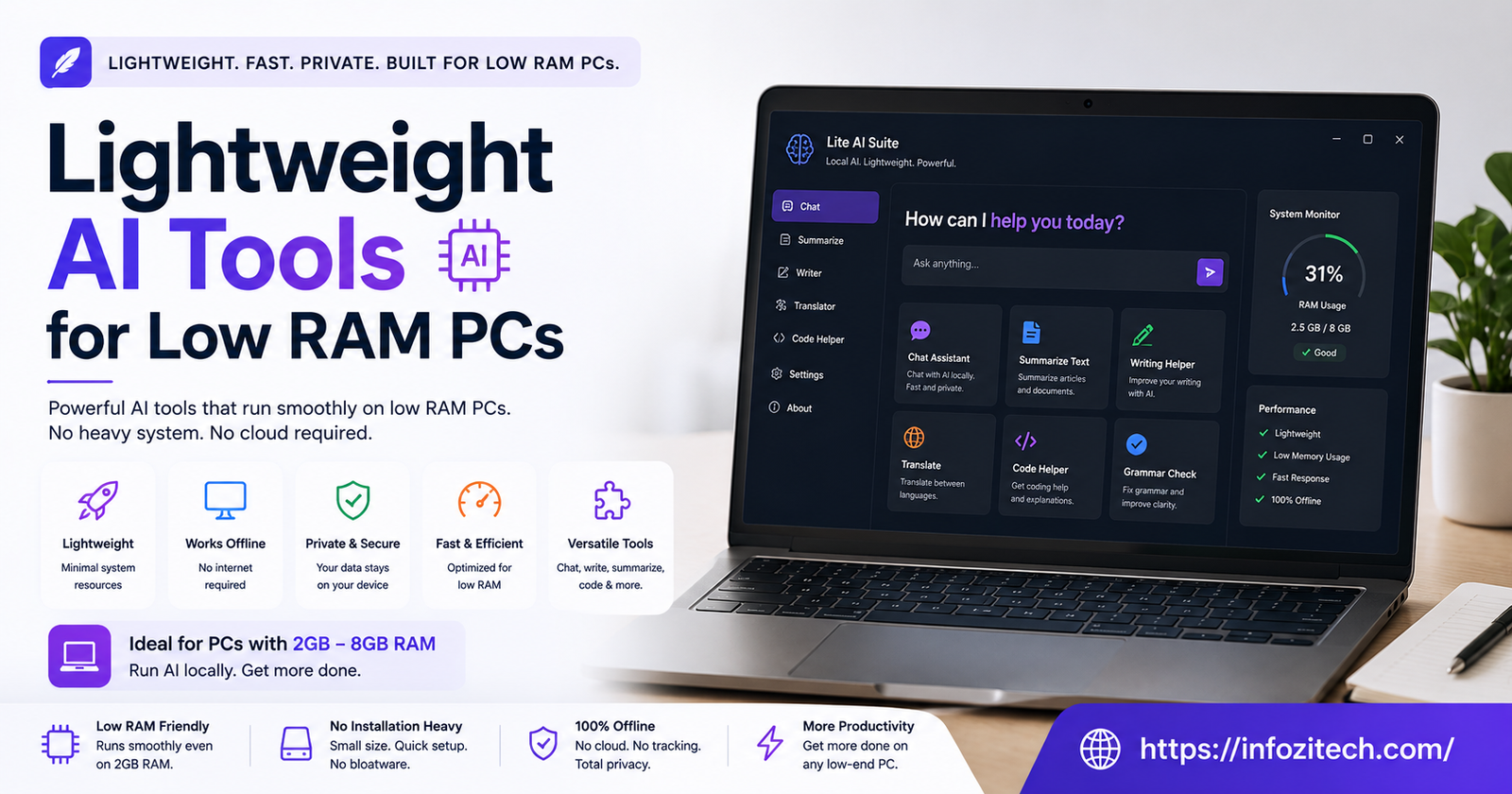
I’ve got a laptop in a drawer right now, 8GB of RAM, maybe six years old at this point, that I keep meaning to donate somewhere and never quite get around to. Tried running one of those “run AI locally” tutorials on it last year, the kind where someone breezily says “just download this model and run it” — fan screaming within thirty seconds, everything else on the machine grinding to a crawl, browser tabs freezing one by one like dominoes. Closed it, gave up, went back to whatever cloud tool I was avoiding in the first place. That’s basically the experience a lot of people have with “local AI,” and it’s not really their fault.
So this is the other version of that guide. What actually runs on a low RAM machine, what technically “runs” but makes your computer miserable in the process, and how you can tell the difference before wasting an afternoon downloading something that was never going to work on your hardware to begin with.
Why RAM Is the Bottleneck, Not the Processor
The Thing Nobody Explains Clearly Enough
Most people assume a slow computer is a processor problem, and sometimes it is, but for AI tools specifically, RAM is usually the actual wall you hit first. AI models, especially language models, need to load their entire structure into memory to run at all. A model that needs 8GB just to load leaves basically nothing for your operating system, your browser, anything else you’d normally have open — so even if it technically loads, you’re left with a machine that can barely do anything alongside it.
This is why a decent processor doesn’t save you here. You can have a reasonably fast chip and still hit a wall the second a model needs more memory than your system actually has to spare, because the processor’s not the thing running out — the memory is, and there’s no clever workaround for that once you hit the ceiling.
The Rough Numbers Worth Knowing
Without getting too deep into technical weeds, here’s roughly where things sit. Systems with 4GB of RAM are mostly out of the running for any local AI work — genuinely too tight; don’t waste your time. 8GB is workable but tight, and you’ll need to be selective about which tools you pick. 16GB opens up a meaningfully wider range of options without much fuss. Anything above that, you’ve got real flexibility, and most of what follows here becomes less about “will this work” and more about “which one do I prefer.”
What Actually Runs Comfortably on 8GB
Small Language Models, the Ones Built for This
The category worth knowing about is small language models, sometimes labeled “SLMs” if you see that term floating around somewhere. Phi-3 Mini from Microsoft is one of the better-known ones, built specifically to run on modest hardware without needing a dedicated graphics card to feel usable.
Gemma 2B, Google’s smaller open model, sits in similar territory. Runs reasonably on 8GB systems, particularly if you’re not simultaneously trying to run six other memory-hungry programs alongside it, which, let’s be honest, most of us are doing anyway without thinking about it.
The Interface Layer Matters Too
Here’s something that trips people up: the model itself isn’t the whole story. The app you’re using to actually run and interact with it eats memory too, sometimes more than people expect. Ollama is worth mentioning specifically because it’s built to be lean about this — it loads models efficiently and doesn’t carry a bloated interface on top, which matters a lot more on a constrained system than it would on something with RAM to spare.
Photo and Image Tools That Won’t Bring Your PC to a Crawl
Skip the Full Editing Suites With AI Bolted On
A lot of mainstream photo editors have added AI features recently — object removal, background generation, that kind of thing — and most of them assume you’re running a machine built for actual creative work. On a low RAM system, these features either crawl or just refuse to run at all, and there’s rarely a clear warning about that before you’ve already installed the thing and are sitting there watching a loading bar that isn’t moving.
GIMP, paired with lighter AI plugins built specifically for lower-spec use, is a decent alternative — more manual than something like Photoshop’s AI tools, sure, but it won’t demand resources your machine simply doesn’t have. Worth the slightly steeper learning curve if your hardware’s the limiting factor here rather than your patience for a less polished interface.
For Quick, Occasional AI Image Needs
If you only need AI image stuff occasionally rather than as a daily tool, it’s genuinely fine to lean on cloud-based options for this specific category rather than forcing local processing on hardware that’s not built for it. Not everything needs to run locally to be a reasonable choice — sometimes the pragmatic answer is just using the cloud tool for the occasional task and saving your local setup for the stuff you actually do every day.
Writing and Text Tools
Grammar and Basic Drafting
LanguageTool, running its lighter local checking mode rather than full cloud analysis, handles grammar and basic style checking without needing much memory at all — genuinely one of the easier wins in this whole category, and something most low RAM users can just install without a second thought.
For actual drafting help — turning a few bullet points into a full paragraph, that kind of thing — a small local model through Ollama, one of the ones mentioned above, handles this reasonably well. Won’t be instant; there’s usually a noticeable pause before it starts responding, but it’s usable, and usable is really the bar that matters on constrained hardware rather than expecting cloud-level speed.
When to Just Use the Cloud Version Instead
Honestly, for anything requiring heavier reasoning — long documents, complex editing requests, anything where you need genuinely sharp output rather than “good enough” — cloud tools are still going to outperform what fits comfortably on 8GB of RAM, and pretending otherwise doesn’t help anyone. The lightweight local approach is for everyday stuff, not for replacing every single use case a bigger model handles better. Knowing when to switch back to a cloud tool for the harder tasks is part of using a low RAM setup well, not a failure of the setup itself.
Voice and Dictation Without the Memory Hit
Whisper’s Smaller Variants
Whisper, the open-source speech-to-text model, comes in multiple sizes, and the smaller variants — tiny and base, specifically, if you’re looking at the actual model names — run comfortably even on tight RAM. Accuracy takes a small hit compared to the larger versions, noticeable if you’re doing something requiring precision, but for everyday dictation, notes, quick voice memos turned to text, it’s genuinely solid and rarely the bottleneck people expect it to be.
This is one of the better examples of a category where the lightweight version isn’t a huge compromise compared to the full-size model — the gap between tiny and large Whisper is smaller in practice than the gap you’d expect between a small and large language model doing more complex reasoning work.
Setting Things Up Without Making It Worse
Close Everything Else First, Seriously
This sounds almost too obvious to bother writing down, but it’s the single most common mistake people make on constrained hardware: trying to run a local AI tool while also having twelve browser tabs, a music app, and a video call app all open simultaneously. Close what you don’t need before running anything memory-intensive. It sounds like an annoying extra step, and it is, honestly, a bit annoying — but it’s also the difference between something running smoothly and something crawling to a halt for no clear reason you can point to later.
Check Before You Download, Not After
Most model pages will list minimum RAM requirements somewhere, sometimes buried a bit in the documentation rather than front and center where you’d expect it. Check this before downloading anything sizable, not after you’ve already waited twenty minutes for a download only to discover it won’t actually run on your machine. A quick search for the model name plus “RAM requirements” usually turns up an honest answer from someone who’s actually tested it on modest hardware, which is more useful than the marketing page in most cases.
Consider a Lighter Operating System Layer, If You’re Willing
For genuinely old hardware — think a decade-old laptop rather than something from the last few years — running a lighter Linux distribution instead of a heavier default operating system frees up meaningful RAM that would otherwise be eaten just keeping the system running in the background. This isn’t a step everyone wants to take; it’s a bigger commitment than installing an app, but for someone serious about squeezing local AI use out of genuinely old hardware, it’s worth knowing this option exists rather than assuming your only path forward is buying new hardware.
Knowing When to Just Upgrade the RAM Instead
Sometimes the Software Advice Isn’t the Answer
There’s a point where the more honest advice is: buy more RAM, if your machine allows it. Many laptops from the last several years have upgradeable RAM slots, and going from 8GB to 16GB is often a genuinely affordable fix that opens up a much wider range of tools without needing to hunt for the specifically lightweight version of everything.
When It’s Genuinely Not Worth It
For older machines where RAM isn’t upgradeable, or where the cost of upgrading approaches the cost of just replacing the machine outright, sticking with the lightweight tool approach described above is the more sensible path. Not every old laptop needs to become an AI workstation.
Wrapping This Up
Running AI tools on a low RAM machine isn’t the dead end it can feel like after one bad experience with a tutorial that assumed better hardware than you’ve got. There’s a real, usable set of tools built specifically for this — small language models, lighter interfaces, scaled-down voice tools — that do genuinely useful work without asking more of your machine than it can give. It won’t match a high-end setup, and being upfront about that matters more than pretending otherwise. But for everyday tasks, on a machine that’s more modest than the tutorials assume, there’s more here than that one bad first attempt might have suggested. .








2 thoughts on “Lightweight AI Tools for Low RAM PCs”