
How to Backup Android Phone Data for Free
My phone fell in a sink once. Full glass of water, phone goes in, I panic, fish it out, and spend the next ten minutes googling “rice phone fix” like that was ever going to work. It didn’t, not really; the phone survived mostly on luck. But that whole hour of dread taught me something. I had zero backup. Photos from a trip two months earlier, texts I actually needed, all of it just sitting on one device that almost drowned in dish soap water.
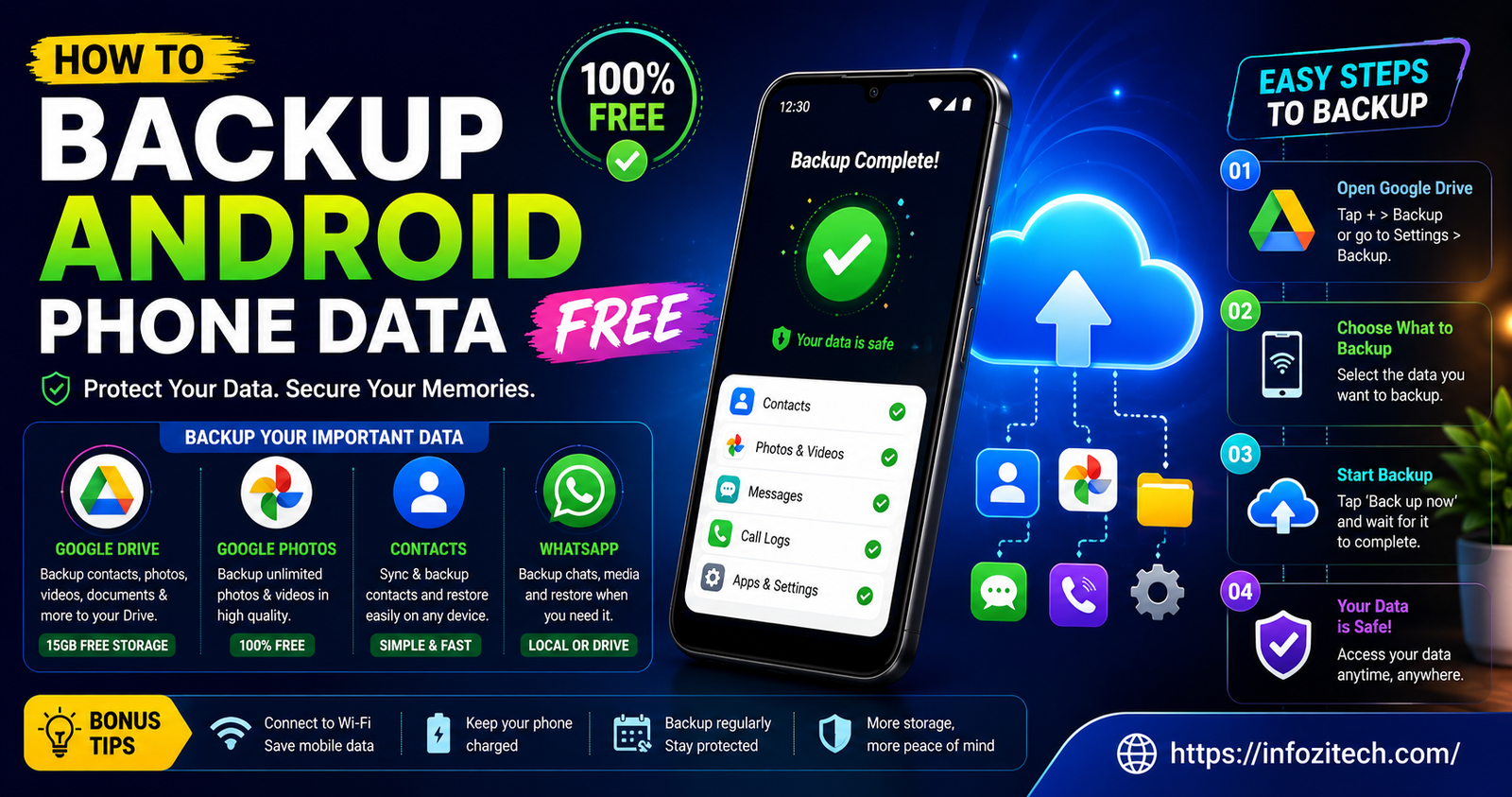
So this is the guide I wish I’d read before that happened. Every method here costs nothing: no subscriptions, no premium tiers you get nagged into later.
Why Bother Backing Up At All
People put this off constantly. I did too, for years, honestly. Then something happens: a cracked screen, a phone that won’t turn on, a factory reset gone wrong, and suddenly you’re staring at a blank device wondering where five years of photos went.
Android phones don’t back up everything automatically by default, not the way people assume.
What Actually Needs Backing Up
Photos and videos, obviously; those are usually the ones people mourn hardest. Contacts. Text messages, though a lot of folks forget these until they need an old conversation for something important. App data, saved passwords, call logs. Documents you might have downloaded. It adds up fast once you actually list it out.
Google’s Built-In Backup, The One Most People Already Have
Every Android phone comes with Google account syncing, and honestly, this covers more than most people realize once it’s set up right.
Turning On Google Backup
Go into Settings, then Google, then Backup. Some phones bury this slightly differently depending on the manufacturer; Samsung phones especially like to rename things for no clear reason, but it’s always somewhere under your Google account settings. Toggle it on. That’s basically it.
Once it’s active, your phone starts backing up app data, call history, contacts, device settings, and, depending on your phone, SMS messages too. This runs quietly in the background, usually overnight while your phone charges and has wifi, so you genuinely don’t have to think about it again once it’s configured.
The Free Storage Limit Situation
Here’s the catch nobody explains clearly enough. Google gives you 15GB free, but that’s shared across Gmail, Google Photos, and Drive combined, not a separate bucket just for phone backups. If your Gmail is stuffed with old attachments or your Photos library is huge, that 15GB fills up faster than you’d expect.
Check your storage usage before assuming you’re covered. Settings, Google, Manage your Google Account, then Data and Privacy, there’s a storage section in there that shows exactly what’s eating your space.
Backing Up Photos Specifically With Google Photos
Photos deserve their own section honestly because they’re usually the biggest chunk of data and the thing people care about losing most.
Setting Up Photo Backup
Open Google Photos, tap your profile picture in the top right, go to Photos settings, then Backup. Turn it on. You’ll get a choice between original quality, which eats into your storage limit fast, or storage saver quality, which compresses things slightly but is honestly hard to tell apart from the original in most cases.
I use storage saver. My photos still look fine on a phone screen, and honestly most people aren’t printing billboard-sized prints off their vacation snapshots.
A Workaround for the Storage Limit
If you’re worried about hitting that 15GB ceiling, some phone brands, Samsung and Pixel especially, have historically offered unlimited storage saver backups through their own photo apps or partnerships, though this changes over time so it’s worth checking your specific phone’s photo gallery app for a similar option before assuming you’re stuck paying.
Using a Computer for a Local, Totally Free Backup
Sometimes the internet isn’t the answer. Sometimes you just want your stuff copied onto a laptop, no cloud involved, no accounts, nothing.
Copying Files Directly
Plug your phone into your computer with a USB cable. On Android you’ll usually get a notification asking what kind of connection you want, choose file transfer. Your phone will show up like a regular drive on your computer, and from there you can drag folders straight over. DCIM for photos and videos, Downloads for anything you saved from browsers or messaging apps.
Why This Method Still Matters
A lot of people skip this because it feels old-fashioned, but a local backup on your own computer is genuinely one of the most reliable options there is. No internet outage affects it. No account gets locked out. It’s just sitting there, on a drive you control.
Backing Up Contacts Without Losing Your Mind
Contacts are one of those things people don’t think about until they get a new phone and realize half their numbers are gone.
Syncing Through Your Google Account
Settings, Accounts, your Google account, make sure Contacts sync is switched on. Once it is, every contact saved to your phone gets mirrored to your Google account, which means it’s accessible from contacts.google.com on any browser, and it’ll auto-populate onto any new Android device you sign into later.
Exporting as a Backup File
If you want an actual file you can keep somewhere separate, open your Contacts app, there’s usually an option under settings or the three-dot menu to export contacts as a vCard file. Save that file to your Downloads folder, then copy it over to your computer using the USB method above.
What About Text Messages
This one’s trickier than people expect, mostly because Android doesn’t handle SMS backup as consistently as other data.
Google’s Message Backup Option
If you use Google’s own Messages app, there’s a built-in backup feature. Open Messages, tap your profile icon, go to Messages settings, then Message backup. Turn it on and link it to your Google account. It’ll back up your texts automatically going forward.
Third-Party Apps Without a Subscription
Some apps handle this specifically, SMS Backup and Restore being the most commonly used free option. It exports your texts to a file you can save to Google Drive or your local storage, no payment involved for the basic version. Just double check the permissions it asks for and only download it from the official Play Store listing.
Backing Up App Data and Settings
This is the part people forget entirely until they set up a new phone and realize every app needs re-logging into from scratch.
Letting Android Handle It
The built-in Google Backup mentioned earlier does cover a good chunk of app data automatically, assuming the apps themselves support Android’s backup system, which most major apps do these days. This includes things like game progress, some app preferences, and login states for apps that play nicely with it.
Accepting Some Apps Just Won’t Cooperate
Not everything backs up cleanly though, and there’s no free workaround for apps that intentionally block backup access for security reasons, banking apps being the obvious example. For those, honestly, just keep your login credentials saved somewhere secure like a password manager, and accept you’ll need to log back in manually after a phone switch.
Putting It All Together
Realistically, no single method above covers everything on its own, and that’s kind of the point. A solid free backup setup is really a combination.
A Simple Routine That Actually Works
Turn on Google Backup for the general stuff. Turn on Google Photos backup with storage saver quality. Sync contacts through your Google account and export a vCard copy too. Set up message backup through whichever messaging app you use. And every month or two, plug into a computer and copy the important folders over manually, just as an extra layer that doesn’t depend on any account or internet connection.
It sounds like a lot written out, but once it’s set up, most of it runs quietly in the background. The manual computer backup is the only recurring task, and honestly it takes ten minutes.
Final Thoughts
You don’t need to pay for any of this. Every method above is free, built into either Android itself or apps that don’t charge for basic backup functionality. The mistake most people make isn’t picking the wrong method, it’s just not doing anything at all until a phone gets dropped, dunked, stolen, or bricked by a bad update.
Set this up now, while your phone’s fine and nothing’s on fire. Future you, dealing with a cracked screen or a sink incident of your own, will genuinely thank you for it







2 thoughts on “How to Backup Android Phone Data for Free”