
How to Fix Slow Wi-Fi at Home
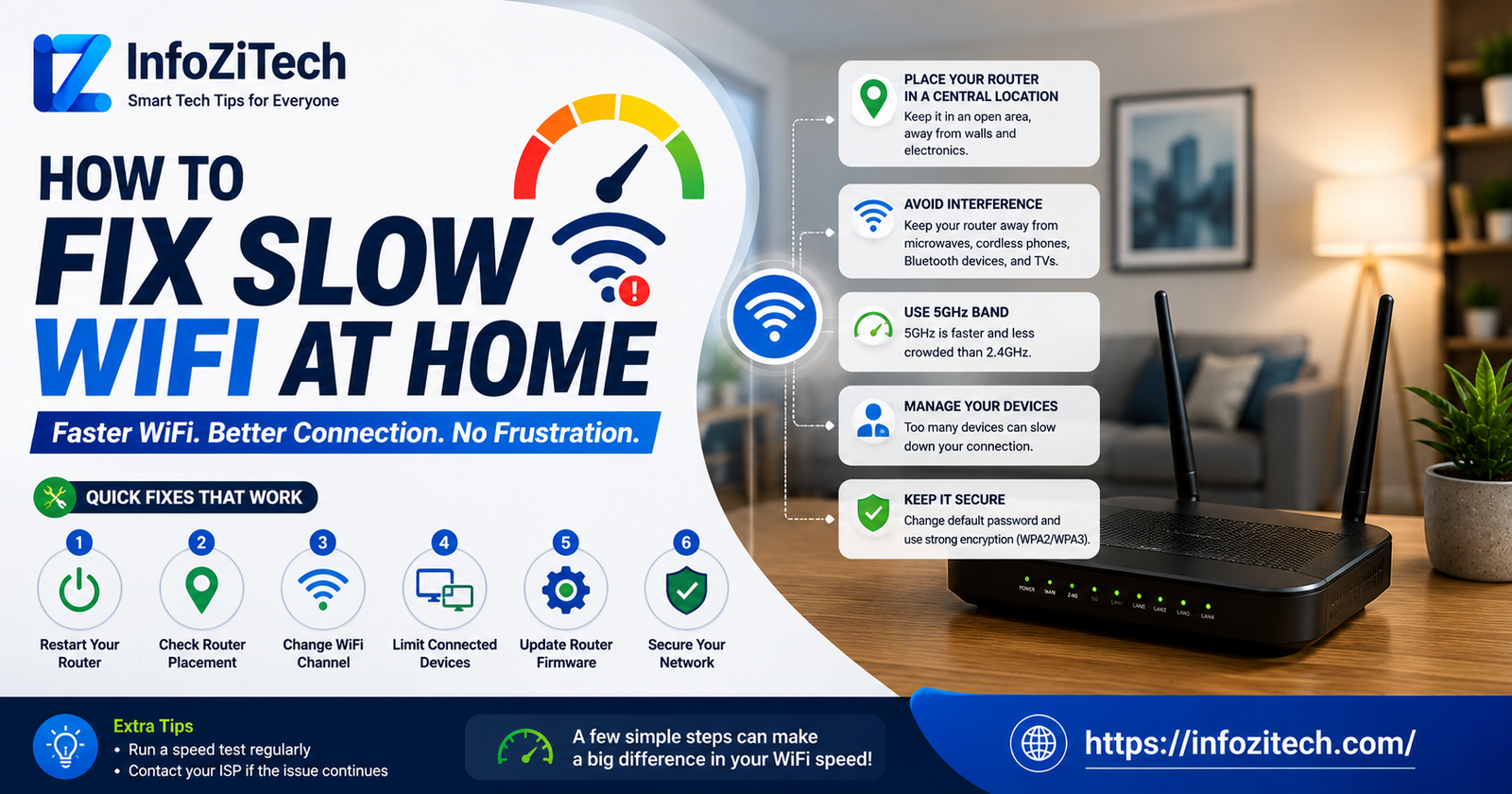
You know the moment. Video’s buffering right at the good part, someone’s on a call, and their face is frozen mid-sentence with their mouth stuck open at a weird angle, and you’re standing in the middle of your own living room holding your phone up toward the ceiling like that’s going to do anything. It won’t. We’ve all done it anyway, somehow convinced height matters more than it does.
Slow Wi-Fi feels like a mystery right up until you actually dig into it, and then it turns out to be one of maybe six usual suspects, over and over, in basically every house that’s ever had this problem. I’ve chased this exact thing for my own place, for parents convinced their provider was scamming them out of speed they were paying for, for a roommate once who insisted “this is just how Wi-Fi is” and hadn’t once considered that his router was a decade old and quietly dying in the hallway closet. Let’s actually go through what causes this and what fixes it, properly.
First, Confirm It’s Even Your Wi-Fi
Before touching a single setting, figure out whether the problem is actually your network or something further up the chain you can’t fix from your living room.
Speed Test, Wired
Plug a device straight into the router with an Ethernet cable, run a speed test. Fine wired but bad wireless? That’s a Wi-Fi problem specifically, not your actual internet connection. Saves people an hour of pointless router fiddling, this one test.
Check for an Outage
Providers have outages in specific areas sometimes, and people mistake this for their own network constantly. A quick search, or one call, clears it up in two minutes flat.
Test at Different Hours
If speeds tank specifically in the evening when the whole neighborhood’s home streaming stuff at once, that’s congestion on the provider’s side. Your router can’t fix that no matter what you do to it.
The Usual Suspects
Once you’ve confirmed it’s genuinely your home network, here’s what actually causes this, roughly in order of how often each one turns out to be it.
Distance and Walls
Signal weakens over distance, gets blocked by walls, especially thick ones — brick, concrete, anything metal in the way. A router sitting in the basement trying to reach the third floor is fighting a fight it’s just not going to win, no matter what it costs you.
Too Many Devices Connected
Every smart bulb, every streaming stick, every random gadget on your network takes a slice of available bandwidth. Thirty connected devices is a completely different situation than five, even if nobody’s actively using most of them at any given moment.
An Old Router, or a Cheap One
Routers age out. That box your provider handed you five years ago might not handle the speeds you’re paying for now, or the number of devices you’ve quietly accumulated since then. Tech moves faster than that particular piece of plastic sitting on your shelf.
Channel Congestion
Apartments especially — dozens of nearby networks all crowding the same channels, causing interference, kind of like too many people trying to talk over each other in a room that’s way too small for the crowd in it.
Something Hogging Bandwidth Quietly in the Background
A massive automatic backup running, someone downloading a huge file without telling anyone, and suddenly there’s nothing left for the video call that actually mattered.
Fix One: Just Move the Router
Where It Should Actually Live
Central spot in the house, up off the floor a bit, away from thick walls and metal stuff nearby, and definitely not shoved inside a cabinet or closet where the signal has to fight its way out before it even reaches your couch.
Away From Things That Interfere
Microwaves, baby monitors, cordless phones, some Bluetooth devices too — all of these mess with Wi-Fi, particularly on the 2.4GHz band. Moving the router just a few feet from these can genuinely, noticeably help.
Fix Two: Restart Everything, and Do It Properly
Why This Actually Fixes Anything
Routers pick up small glitches over time. Memory fills with junk, connections get stuck in weird half-states nobody notices until things slow to a crawl. A proper restart wipes all of it clean.
The Actual Right Way
Unplug both modem and router, wait a full thirty seconds, don’t rush this part, plug the modem back in first, wait for its lights to settle, then plug the router back in. Skip the wait, or do it out of order, and sometimes the whole thing just doesn’t clear properly.
Fix Three: Update the Firmware
What This Actually Does
Manufacturers patch bugs affecting speed and stability, not just security stuff. Old firmware genuinely can be part of why everything feels sluggish, even if the router itself is otherwise fine.
Finding It
Usually under administration or firmware update inside the router’s admin panel, reached by typing its IP address into a browser. Some newer routers just handle this automatically now, worth checking if yours does.
Fix Four: Pick a Better Channel
2.4GHz vs 5GHz, Quickly
2.4 reaches further, more congested, slower. 5GHz is faster, weaker through walls. Close to the router? Switch to 5GHz for a real bump. Further away? 2.4GHz might actually serve you better despite technically being the slower option.
Manually Choosing a Channel
Most routers auto-pick, but crowded areas benefit from manually switching to something less congested through the admin panel. A Wi-Fi analyzer app on your phone shows exactly which channels nearby networks are already piling onto.
Fix Five: Figure Out What’s Actually Eating Your Bandwidth
Check the Connected Devices List
Most admin panels show everything currently connected. See something you don’t recognize? Some forgotten smart gadget nobody uses anymore? Disconnect it.
Prioritize What Actually Matters
Quality of Service settings, in most router panels, let you prioritize bandwidth for specific devices or activities — video calls over some random background download, say. Worth setting up if your router has it and multiple people share the connection regularly.
Push Big Downloads to Overnight
Someone running a huge download or backup? Move it to overnight hours, frees everything up during the times it actually matters to everyone else.
Fix Six: Think About a Mesh System or Extender
When One Router Just Isn’t Enough
Bigger homes, multiple floors, weirdly shaped layouts — sometimes a single router physically can’t cover it all well, no matter how perfectly you position it.
Extender or Mesh, Which One
A basic extender repeats the signal but can introduce its own lag, and you end up manually switching networks as you walk through the house, annoying honestly. A proper mesh system creates one seamless network across several points, performs better generally, costs more up front though.
Fix Seven: Actually Check the Plan You’re Paying For
Are You Even Paying for Enough Speed
Ten people in the house streaming 4K at once, and you’re on the cheapest plan available? No router fix on earth solves that one. Sometimes the honest answer is upgrading the actual internet plan, not the equipment.
Compare What You Pay For vs What You Get
Wired speed test, compared against what you’re actually paying your provider for. A big, consistent gap is worth a call, since it might be a line issue on their end, not anything happening inside your house at all.
When It’s Time to Just Call the Provider
Worked through repositioning, restarting, firmware, channels, checking devices, and it’s still bad even wired? The problem’s likely outside your control at that point. Old wiring, a failing line, an outdated modem that needs swapping — these happen, and no router setting fixes them from inside your house.
Final Thoughts
Slow Wi-Fi almost never has just one cause. Usually it’s two or three small things stacked together — an old router in a bad spot, a crowded channel, some background download nobody remembered was even running. Work through these in order, starting with the free ones, repositioning and restarting, before spending money on anything new. Most people solve this somewhere in the first four fixes here, without buying a single new piece of hardware.
./7_files/saved_resource.html






4 thoughts on “How to Fix Slow Wi-Fi at Home”