
Screenshot Feedback Tool for Remote Teams: Why Visual Feedback Beats Long Email Threads
A few years back, I sat through a 40-minute call that existed for one reason only — someone needed to say “move that button down a little.” That’s it. That was the whole call. Forty minutes, six people, one button. And honestly? I don’t think that story is rare. Ask literally anyone who’s managed people scattered across time zones, and they’ll have their own version of it.
Remote work hasn’t made communication easier, despite what the pitch decks say. It just moved the mess somewhere else. Feedback gets misread. Calls pile up on the calendar like nobody’s checking it. And somewhere in a 90-message Slack thread is the one comment that actually mattered, buried under a bunch of “sounds good” and “lol yes.”
A screenshot feedback tool exists to fix a gap most teams don’t even notice until it’s already cost them a week—the gap between what someone meant and what actually got built.
So — what is this thing, why do remote teams seem to need it more than in-office ones, and how do you pick a decent one without falling for marketing fluff? Let’s get into it.
What Is a Screenshot Feedback Tool?
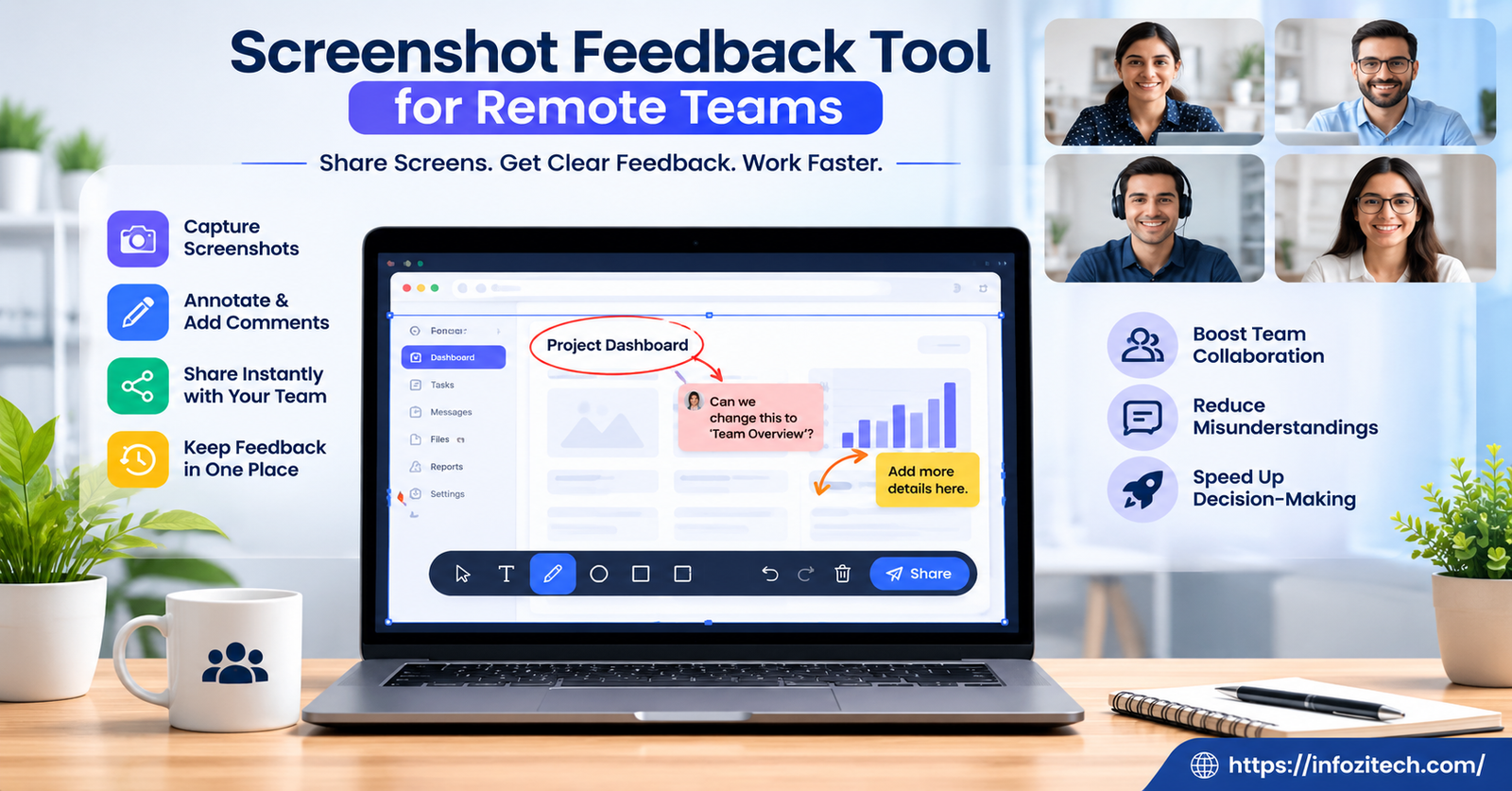
Okay, simple version first. You capture your screen, scribble on it — arrows, circles, a comment box, whatever — and send that marked-up image to someone. Instead of typing out “the button in the top right looks a little off, maybe move it down,” you just circle the button. Done. Ten seconds, maybe less if you’re fast.
I used to think tools like this were kind of a gimmick, honestly. Like, how hard is it to just describe what you mean in words? Turns out, pretty hard, when the thing you’re describing is inherently visual, and words were never built for that job.
The good ones in this category aren’t complicated, and that’s sort of the whole point of them. They’re not trying to become your new dashboard. Nobody wants another dashboard.
The Core Idea Behind Visual Feedback
Here’s the thing about words — they’re slow when what you’re actually looking at is visual. Reviewing a landing page? A mobile screen? A slide in a deck that’s due in an hour? Typing out where the problem is takes longer than just… pointing at it. Which is basically what these tools let you do. Point, mark, send. Fast, precise, and there’s basically no room left for someone to misread what you meant.
Common Features to Expect
Most of these tools end up looking pretty similar under the hood, even if the branding and colors are different.
- One-click capture, usually a browser extension or a little desktop app that lives in your menu bar
- Drawing tools — arrows, boxes, freehand scribbles, highlights
- Comments that attach to a specific spot, not just floating in a sidebar somewhere
- A link you can share instead of an attachment nobody can find later
- Some kind of hookup with Trello, Asana, Jira — the usual suspects
Why Remote Teams Struggle Without One
When you’re not physically near your teammates, you lose all that casual, glance-over-the-shoulder feedback that used to happen without anyone scheduling it. Someone walks by, notices something’s off, says so. That’s gone now. What replaces it, in most companies I’ve seen, is a patchwork — screenshots dumped into Slack with no context, comments left in a Google Doc that three people forgot to check, a Zoom call booked just to look at one image for ninety seconds.
None of that is disastrous on its own. One weird Slack screenshot, fine, whatever. But stack that pattern across a team of twenty people spread over five time zones, and it starts to add up in ways that are hard to see day to day but very obvious by the end of a quarter.
The Cost of Miscommunication
Feedback that isn’t tied directly to the thing it’s describing forces people to guess. “The spacing feels off” — okay, which spacing? Which screen? What size, desktop or mobile? The developer guesses. The guess is wrong half the time, because how could it not be? Another round of back and forth happens. The task that should’ve taken twenty minutes eats up half a day instead.
And it’s rarely one catastrophic miscommunication that actually hurts a team — I’ve rarely seen that be the real story. It’s the hundred tiny ones, the ones nobody bothers to complain about because each one only costs fifteen minutes.
Time Zone Friction
There’s also this asynchronous piece that only really matters once your team stops being in the same building. Say a designer in Lisbon wraps up a mockup right as their day ends. The reviewer in Manila isn’t logging on for another eight hours — a call just isn’t happening, not without someone staying up way too late. But a screenshot with clear markup sitting there waiting? That works fine asynchronously. Reviewer wakes up, opens the link, sees exactly what needs attention, replies. No live conversation required, no scheduling back-and-forth across three calendar apps.
Key Benefits of Using a Screenshot Feedback Tool
Teams that actually start using one of these tend to notice the difference fast — like, within the first couple weeks, not months later.
Faster Turnaround on Reviews
No translation step. The person getting the feedback isn’t interpreting anything; they’re just looking at exactly what’s being pointed at. I’ve seen this cut feedback rounds roughly in half on some projects, though your mileage will vary depending on how messy your process was to begin with.
Fewer Unnecessary Meetings
Not everything needs a live call, even though it feels that way sometimes. A well-marked screenshot can replace a fifteen-minute meeting that would’ve covered maybe three small points anyway. Pull enough of those out of people’s calendars, and suddenly they’ve got actual chunks of time to do focused work again — which, remember, is the whole reason people wanted remote jobs in the first place.
Clearer Accountability
Comments attached to a specific screenshot leave a trail. If someone asked for a change three weeks ago, it’s still sitting right there, attached to the exact image it was about. Nobody has to scroll back through a chat history trying to remember who asked for what, or worse, arguing about whether they even asked at all.
Better Onboarding for New Team Members
New hires on remote teams struggle to catch up on history — there’s no hallway conversation to overhear, no “oh yeah we tried that already” moment. A searchable pile of visual feedback gives them that context anyway. They can actually see how a design changed, what got rejected, why. Without pinging five different people just to get caught up.
How Screenshot Feedback Tools Fit Into a Remote Workflow
A tool only matters if it fits how people already work. Nobody’s rebuilding their whole process around a new app, not really, not for long. The decent tools in this space slot into existing habits instead of demanding new ones.
Design and Development Handoffs
Designers use these to show developers exactly how something should look or behave, instead of writing a vague ticket and hoping for the best. The developer gets a marked-up image showing the exact pixel, the exact spacing, the exact color that needs to change. Way less guessing involved.
Marketing and Content Review
Marketing teams pass drafts and ad creatives and landing pages between writers, designers, whoever needs to sign off. A screenshot feedback tool lets everyone comment right on the asset itself instead of some separate doc trying to describe an image in paragraph form, which — honestly — never works that well.
QA and Bug Reporting
QA folks lean on this constantly. A screenshot with an arrow pointing at the broken thing tells a developer more in two seconds than a paragraph describing “the button doesn’t work sometimes” ever could.
Client and Stakeholder Approvals
Clients don’t always speak the same technical language the team does — that’s just reality, and it’s fine. Visual feedback sidesteps that whole problem. The client points at what bugs them, the team knows exactly what to fix, nobody has to translate anything.
What to Look for When Choosing a Screenshot Feedback Tool
Not all of these tools are built the same, and picking a clunky one can honestly create more friction than just sticking with Slack screenshots.
Ease of Capture
Should take one or two clicks. If people have to switch apps, wait for an upload bar to crawl across the screen, whatever — they’ll just stop using it within a week. I’ve watched this happen.
Annotation Flexibility
Look past basic arrows and text boxes. Freehand drawing, numbered callouts, the ability to blur out sensitive info before sharing — matters more than you’d think depending on what your team actually works on.
Integration With Existing Tools
It needs to connect to wherever your team already lives — Slack, Jira, Trello, Notion, whatever. A tool that sits on its own little island gets ignored. Every time.
Access and Permissions
If you’re working with outside clients or contractors, who can see and comment on what actually matters. Look for real permission controls so sensitive projects don’t end up visible to people who shouldn’t see them.
Speed and Reliability
A laggy tool, one that crashes or takes forever loading a screenshot, gets abandoned no matter how many features it’s got on the pricing page. Reliability beats a long feature list every single time, and I say that as someone who’s fallen for the feature list more than once.
Best Practices for Using Screenshot Feedback in a Remote Team
Getting the tool is maybe half the job. The rest is habits.
Be Specific, Not Just Visual
Circling something isn’t always enough on its own. Pair the mark with a short comment explaining what and why. “Move this” tells you less than “move this button down 8px so it lines up with the field above it” — same effort, way more useful.
Keep Threads Focused
One screenshot, one topic, ideally. Cramming five unrelated comments onto a single image just makes it harder for whoever’s reading it to figure out what actually matters most.
Set a Response Expectation
Since this stuff is often async, agree on some rough turnaround as a team — same day, next business day, whatever fits. Otherwise feedback loops just quietly stall out and nobody notices until a deadline’s already blown.
Archive Important Feedback
Don’t let old threads vanish into nothing. Keep a record of the real decisions and approvals, so whoever’s on the team six months from now — maybe even future you — can trace back why something ended up the way it did.
Final Thoughts
Remote teams don’t fall apart because people aren’t trying. They fall apart because the tools weren’t built for distance, for time zones, for work that happens async instead of side by side. A screenshot feedback tool closes that gap — it turns vague written feedback into something clear and visual and immediate, the kind of thing you can act on without a meeting.
For any team reviewing designs, websites, marketing assets, whatever it is on a regular basis, this stops being a nice-to-have pretty fast. It becomes one of those quiet pieces of infrastructure that keeps a distributed team moving at roughly the same speed as people who happen to sit in the same room.






2 thoughts on “Screenshot Feedback Tool for Remote Teams: Why Visual Feedback Beats Long Email Threads”