
AI Browser Productivity Methods: How to Actually Get More Done Online
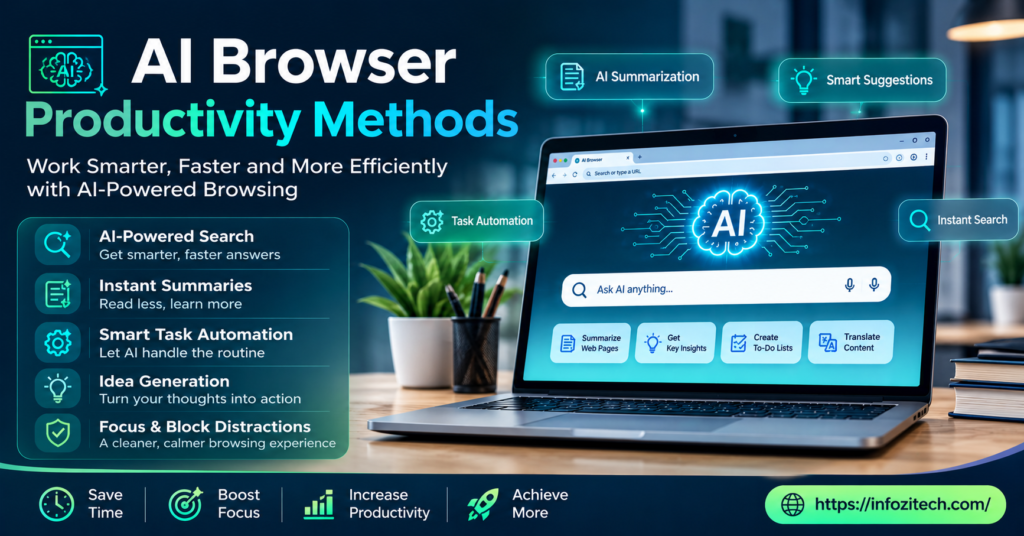
Okay, so here’s a thing that snuck up on a lot of people. The browser — the app you’ve had open, basically nonstop, for two decades now — quietly turned into something else. It’s not just a window for loading pages anymore. It reads what’s on the page with you, answers questions about it, and in a growing number of cases it’ll just go do the task itself while you do literally anything else. That’s the whole AI browser category in a sentence. And the productivity side of it is real, but only if you’re using it right, which — honestly — most people aren’t yet.
This isn’t another “best browser” roundup. It’s about the methods. What you actually do with these tools once you have them open, so the time savings show up in real life and not just in a demo video.
What Makes a Browser “AI” in the First Place
Worth pausing here for a second, because the term gets thrown around loosely. A regular extension bolted onto Chrome usually only sees one page at a time, limited context, forget it the moment you switch tabs. An AI browser is different — it holds context across your open tabs; it can read what you’re looking at, summarize it, answer follow-up questions, and sometimes act on your behalf across multiple sites in a row.
The Assistant-in-the-Browser Model
This is the more common setup right now. Think Copilot inside Edge, or Perplexity’s Comet, or Claude showing up directly in Chrome. You highlight something, ask a question, get an answer without leaving the page. Simple, but it removes a surprising amount of friction — no more copy-pasting into a separate chat window fifty times a day.
The Agentic Model
Then there’s the newer, more ambitious layer — agentic browsing. Here you give a high-level instruction, something like “compare these three products and tell me which ships fastest,” and the browser opens tabs, reads pages, cross-references, and comes back with an answer. Some of these tools go further still, filling out forms, booking things, managing your inbox. It’s genuinely useful. It’s also, worth saying, still a bit rough around the edges in places — recovering from a broken page layout or an unexpected pop-up isn’t always graceful yet.
Method One: Let the Browser Read So You Don’t Have To
Page and Article Summarization
This is the low-hanging fruit, and it’s honestly the method most people should start with if they haven’t already. Long article, dense report, twenty-page PDF someone emailed you — instead of skimming it yourself, hunting for the two sentences that matter, ask the AI layer to pull out the key points first. You still read the source if it matters enough. But now you’re deciding that with information, not blind.
Cross-Tab Synthesis
Here’s where it gets genuinely different from just having a chatbot open next to your browser. Some AI browsers can look across everything you’ve got open — say, five open tabs comparing insurance plans, or six competitor pricing pages — and pull it together into one answer. You’re not manually toggling between tabs trying to hold five numbers in your head anymore. The browser holds them for you.
Method Two: Automate the Repetitive Research Loop
Multi-Source Comparison Tasks
A lot of knowledge work is really just repetitive comparison dressed up as “research.” Which vendor, which tool, which flight, which apartment. This is exactly the kind of task agentic browsers were built for — give it the criteria, let it open the tabs, pull the numbers, and hand you a table instead of you doing the clicking yourself for forty-five minutes.
Structured Output Requests
One habit that actually matters a lot here: ask for the output in a specific shape. Don’t just say “look into this.” Say “give me a table with price, delivery time, and rating for each.” Vague prompts get vague, rambling answers. Specific prompts get something you can actually use five minutes later without editing it first.
Method Three: Tab and Context Management
Automatic Tab Grouping
Some browsers now use AI to cluster your open tabs by topic automatically — all your travel research in one group, all your work stuff in another — instead of you manually dragging tabs around at 11pm trying to find the one you actually need. Sounds small. Isn’t, really, once you’ve got thirty tabs open and zero idea which one had the thing you needed.
Session Memory Across Tasks
A genuinely underrated feature: some tools remember what you were doing across a session, so if you close the laptop and come back three hours later, you don’t have to explain the whole task again from scratch. It just picks up where you left off, or close enough that you don’t lose the thread.
Method Four: Writing and Drafting Without Leaving the Page
In-Context Drafting
Instead of switching to a separate writing tool, drafting directly inside the browser — replying to an email, writing a comment, filling in a form field — keeps you in flow. You don’t lose the context of what you were reading right before, which, if you’ve ever had to re-read three paragraphs after tab-switching, you know matters more than it sounds like it should.
Tone and Format Adjustments on the Fly
Ask it to make something more formal, shorter, friendlier, whatever — right there, without opening a separate app. Small thing, saves a surprising number of minutes across a normal workday, minute by minute, which adds up more than people expect.
Method Five: Delegating Multi-Step Tasks to Agents
Task Planning Before Execution
The better agentic tools show you the plan before they run it — here’s what I’m about to do, step by step, approve or edit before I go. This matters a lot, honestly. Blind automation on something like paying a bill or submitting a form is exactly where you want a checkpoint, not a surprise later.
Scheduling Recurring Automations
Some tasks repeat. Checking a price weekly, monitoring a page for changes, pulling a report every Monday morning. A handful of agentic browsers let you schedule these so they just run in the background, connected to your accounts, without you remembering to kick them off manually every single time.
Method Six: Guardrails That Keep You Productive, Not Just Fast
Reviewing Before You Trust
Speed is great until it isn’t. An agent that moves fast but gets something wrong — wrong price pulled, wrong date booked — costs you more time than it saved, cleaning up after it. The method here is simple, if a little unglamorous: skim the output before you act on it, especially anything involving money or anything that’s hard to undo.
Keeping Sensitive Tasks Manual, On Purpose
Not everything should be handed to an agent, at least not yet. Anything touching sensitive accounts, financial transactions, stuff with real consequences if it goes sideways — worth keeping a human hand on that wheel a while longer, even if the tool technically can do it. The technology’s good. It’s not infallible.
Method Seven: Building an Actual Habit Around It
Start With One Recurring Task
Don’t try to overhaul your whole workflow overnight — that usually just leads to abandoning the tool within a week because it feels like more effort than it saves. Pick one thing you do often. Comparing prices, summarizing long emails, whatever it is for you. Get comfortable there first.
Expand Gradually as Trust Builds
Once that one task feels natural, add another. This is really how most people end up actually sticking with these tools long-term — not by trying to automate everything at once, but by layering it in, task by task, until it’s just part of how you work and you don’t really think about it anymore.
Method Eight: Matching the Tool to the Job
Not Every Browser Does the Same Thing Well
This part trips people up more than it should. Some AI browsers lean hard into research and writing — great for pulling together a report or drafting replies. Others are built almost entirely around agentic execution, actually clicking through sites and completing tasks. Picking one because it’s popular, without checking whether it actually fits what you spend your day doing, is a common way people end up disappointed and go back to their old setup within a month.
Running Two Browsers for a While Isn’t a Bad Idea
Switching your default browser cold, on day one, means moving bookmarks, extensions, saved logins, all of it — a real hassle. A better method, at least early on: keep your regular browser as the daily driver, and run the AI browser alongside it for a specific task or two. See how it actually performs on your real work, not a demo scenario, before deciding whether it’s worth the full switch.
A Quick Word on the Learning Curve
Worth being honest here: this stuff isn’t instant. There’s a real adjustment period, figuring out what to trust the browser with and what to keep doing yourself, learning how to phrase requests so you get useful output instead of generic mush. Give it a couple of weeks running alongside your normal workflow before deciding whether it’s actually saving you time — the first few days almost never look as good as week two or three.
Bringing It All Together
None of this stuff replaces thinking. That part still matters, maybe more than ever, honestly — deciding what to delegate and what to keep hands-on is itself a skill, and it’s one most people are still figuring out as they go. But used with a bit of intention, these AI browser productivity methods cut out a genuinely large amount of the repetitive, low-value clicking and copy-pasting that used to eat up entire afternoons.
The browsers keep getting better, month over month it feels like. The methods that work today will probably shift a bit as the tools mature. But the core idea holds steady either way: less time hunting and clicking, more time actually deciding and doing the work that needed a person in the first place.






3 thoughts on “AI Browser Productivity Methods: How to Actually Get More Done Online”