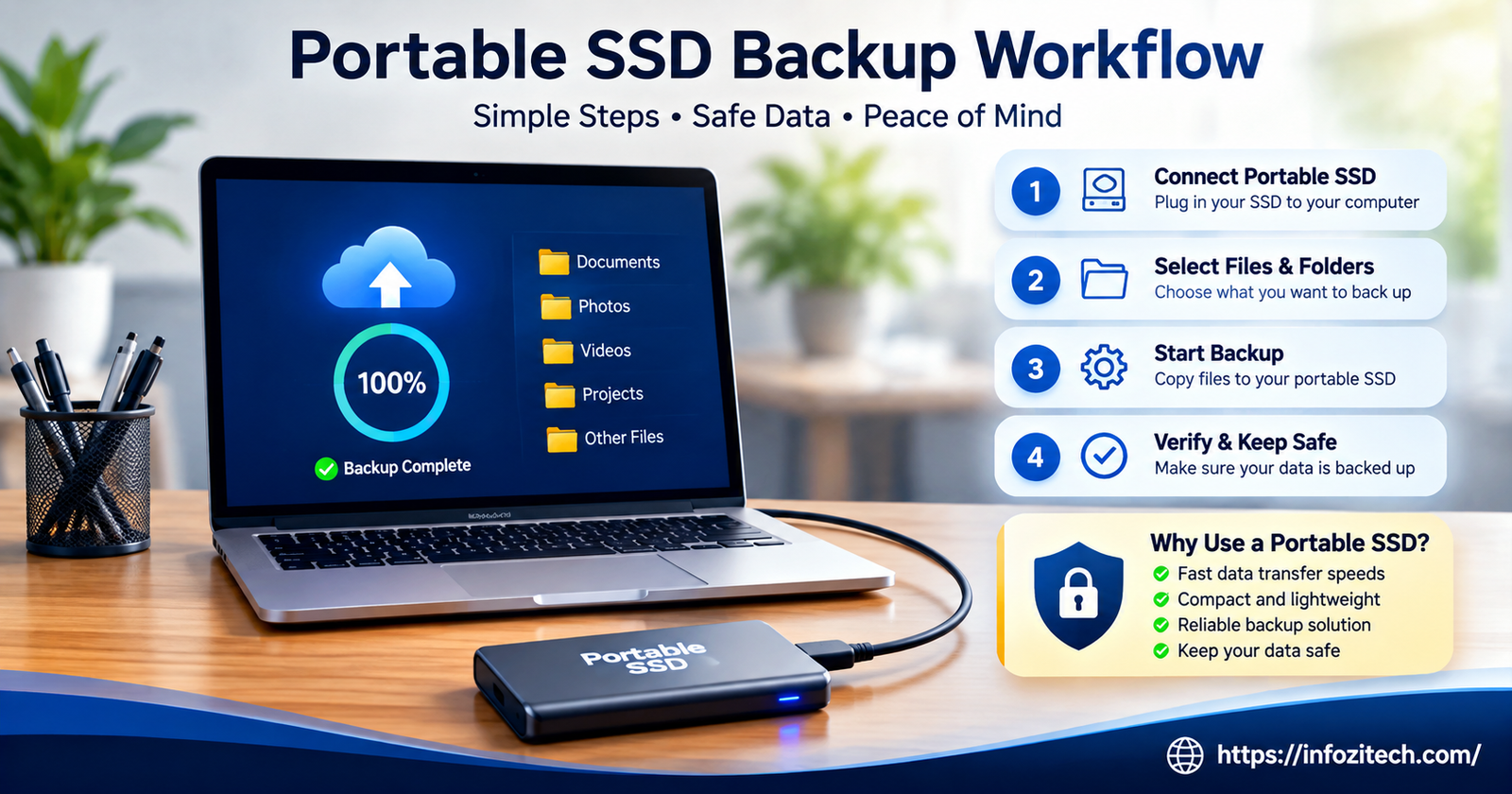
Portable SSD Backup Workflow: How to Actually Protect Your Files
I lost a folder of client photos once. Not all of them, just the RAW files from one shoot, because I’d copied the JPEGs over and figured that was “backed up enough.” It wasn’t. That one gap taught me more about backups than any guide ever did, and honestly it’s the reason I bother writing this at all.
A portable SSD is one of the easiest tools for building a backup habit that actually sticks. It’s fast. It’s small enough to toss in a bag. It doesn’t care whether your Wi-Fi is having a bad day. But here’s the thing nobody tells you when you buy one: owning the drive isn’t the workflow. Plenty of people buy a nice SSD, drag a folder onto it once, feel very responsible about it, and then never touch the thing again for a year. That’s not a backup system. That’s a photo of your data from last spring.
So let’s actually build something that holds up.
Why a Portable SSD Makes Sense for Backups
Before getting into the workflow, it’s worth asking why bother with an SSD over the cheaper hard drive option sitting next to it on the shelf.
Speed and Reliability
Portable SSDs move data fast. Really fast, compared to the old spinning drives. When you’re backing up a folder of video footage or a few hundred RAW photos, that difference between two minutes and twenty minutes matters more than people expect, because a backup that takes forever is a backup you start avoiding. And SSDs don’t have moving parts inside them, so dropping one in your bag between meetings isn’t the small heart attack it used to be with mechanical drives.
Portability Without the Fragility
The whole appeal is that it travels with you. Home office to studio, desk to backpack, wherever. And it only really works if the thing survives being carried around like that — which, again, is where SSDs pull ahead of older external drives that seemed to die the moment you looked at them wrong.
Choosing the Right Portable SSD for Backups
Not all SSDs are built the same, and the one you grab off the shelf shapes how smooth this whole thing ends up being later.
Capacity Planning
Roughly guess how much data you need to protect right now. Then double it. I say this because I did the math once, bought “plenty” of space, and was uncomfortably close to full within about five months. Photo libraries grow faster than anyone thinks they will. So do video projects. So does that one folder of documents you swore you’d clean up someday.
Interface and Speed
Check the connection type before you buy. USB-C with USB 3.2, or Thunderbolt if your machine supports it, will blow older USB-A connections out of the water. If you’ve got a Thunderbolt-capable laptop, pairing it with a Thunderbolt SSD makes big backups feel almost instant. Skipping this detail is an easy way to end up with a fast drive plugged into a slow port, wondering why nothing feels quick.
Build Quality
The drive travels, so it should be able to survive that. Look for something with a rugged case, ideally rated for some shock or water resistance. Doesn’t need to be indestructible. Just needs to survive living in a bag with your keys, a charging cable, maybe a granola bar wrapper you forgot about.
Setting Up Your Backup Structure
Once the drive’s in hand, how you organize it matters almost as much as the hardware itself. A messy backup is a backup you don’t trust, and one you don’t trust is one you’ll eventually stop checking.
Creating a Logical Folder System
Set up folders that mirror how you actually think, not how some tutorial told you to organize things. Documents, Photos, Projects, Archives — whatever makes sense in your head. Don’t nest ten folders deep chasing some idea of “proper” organization. If your laptop died tomorrow, could you find what you needed on the SSD in under a minute? That’s the real test.
Naming Conventions That Save You Later
Use dates. Something like 2026-08-04_ProjectBackup sorts itself naturally and tells you at a glance what’s newest. I know this sounds like a small, almost pedantic detail, right up until you’re staring at three folders named “Backup,” “Backup Final,” and “Backup Final FINAL” trying to remember which one you actually trust.
Separating Active Files from Archives
Files you’re touching daily need frequent backups. Old archive stuff you haven’t opened in two years doesn’t. Keep them apart. Otherwise every backup run drags along gigabytes of stuff that hasn’t changed since last winter, and the whole process gets slower for no real reason.
Building the Actual Backup Workflow
This is the part that decides whether the system survives past week one, if we’re being honest.
Manual Backups vs. Automated Backups
Dragging files over by hand works fine exactly once. Maybe twice. Then life gets busy, and it’s the first habit to slip, every single time, no exceptions I’ve ever seen. Automated backup software, whether it’s built into your OS or a third-party tool, runs on a schedule without needing you to remember anything. Set it up, check in occasionally to make sure it’s still alive, and move on with your life.
Incremental vs. Full Backups
Full backups copy everything, every time. Slow, and it eats space on a drive that isn’t bottomless. Incremental backups only grab what’s changed since last time, which is faster and honestly more realistic for daily use. A decent middle ground: run a full backup once a month, incrementals in between.
Scheduling That Matches Your Habits
Pick a frequency that fits how your files actually change, not some ideal schedule you saw online. Editing video every day? Back up daily. Updating a handful of documents once a week? Weekly is probably fine. The best schedule isn’t the most thorough one on paper. It’s the one you’ll actually keep doing six months from now.
The 3-2-1 Backup Rule and Where Your SSD Fits In
One drive is a good start. It shouldn’t be the whole plan, though.
What the 3-2-1 Rule Actually Means
Three copies of your data. Two different types of storage media. One copy stored somewhere else entirely. Your laptop’s internal drive counts as one. The portable SSD is two. A cloud backup, or a second drive kept at a relative’s house or an office desk somewhere, covers that third “offsite” piece.
Why the Portable SSD Alone Isn’t Enough
If the SSD just sits next to your laptop all the time, one bad event- fire, theft, a spilled drink you really shouldn’t have had near your desk- and both copies are gone in the same afternoon. The portability that makes these drives convenient is exactly what makes them useful for the offsite requirement. Just actually take it somewhere else sometimes. A drive that never leaves your desk isn’t doing offsite anything.
Pairing SSD Backups with Cloud Storage
Cloud storage isn’t a replacement for a physical drive, but the two work well together. Cloud handles the offsite piece automatically and gets you access from anywhere. The SSD gives you a full, fast, offline copy that’s entirely yours, no subscription, no internet required. Using both covers most of the realistic ways things go wrong.
Verifying and Testing Your Backups
A backup nobody’s ever tested isn’t really a backup. It’s a guess.
Running Regular Integrity Checks
Open a handful of backed-up files now and then, just to confirm they’re intact. Some backup software has a built-in checksum feature that compares original and copied files automatically. Turn it on if you’ve got it. It catches the quiet, silent corruption you’d never notice until it was already too late.
Doing a Full Restore Test
Once or twice a year, actually restore a folder from the SSD to a different location on your computer. Not just opening one random file to peek at it. The whole process, start to finish. This is the step almost everyone skips, and it’s usually the exact step that would’ve caught the problem before it turned into a real loss.
Keeping Your Backup Secure
A backup nobody’s protecting is kind of a liability on its own, especially since the whole point of the drive is that it leaves the house.
Encrypting the Drive
Turn on full-disk encryption, particularly if there’s anything sensitive on there, financial records, client work, whatever. Both major operating systems have this built in already, and it’s a few clicks. If the drive ever gets lost or stolen, encryption is the difference between “annoying” and “genuinely bad.”
Physical Security Habits
Treat it like a wallet, basically. Don’t leave it in the car overnight. Don’t hand it to someone without thinking twice. Don’t label it in a way that basically announces what’s on it. Most drive-related data loss I’ve seen wasn’t dramatic, it was just someone being a little careless on an ordinary Tuesday.
Maintaining the Workflow Long-Term
Last piece, and the one people forget about most: keeping this whole thing working a year or two down the line, not just this week.
Reviewing Storage Capacity Periodically
Check how full the drive’s getting every few months. Running out of space mid-backup is a great way to end up with a partial, half-broken copy of something you needed whole. Stay ahead of it instead of finding out the hard way.
Replacing the Drive Before It Fails
SSDs are durable, not immortal. If yours is a few years old, or you’ve noticed it running slower or throwing the odd error, that’s your cue to move everything to a new one before the old one just quits. Waiting for a clear warning sign is risky, because a lot of drives don’t really give you one.
Revisiting the Workflow as Your Needs Change
Whatever setup worked for one laptop and a folder of documents probably won’t hold up once you’re juggling multiple devices or a media library that’s ballooned way past what you planned for. Check back in every so often. Adjust the folders, the schedule, the capacity, whatever’s actually changed.
Final Thoughts
None of this needs to be complicated to work. It just has to be consistent, which is honestly the harder part. Grab a drive you trust, organize it in a way that makes sense to you and nobody else, automate what you can so future-you doesn’t have to remember anything, and actually test it before you’re forced to rely on it in a moment you didn’t choose. Pair it with the 3-2-1 rule so one bad day can’t take out everything at once. And revisit it now and then, because your files change, your habits change, and a backup system that never adjusts eventually stops matching the life it’s supposed to be protecting.