
Digital Privacy Checklist for Families: A Practical Room-by-Room Guide
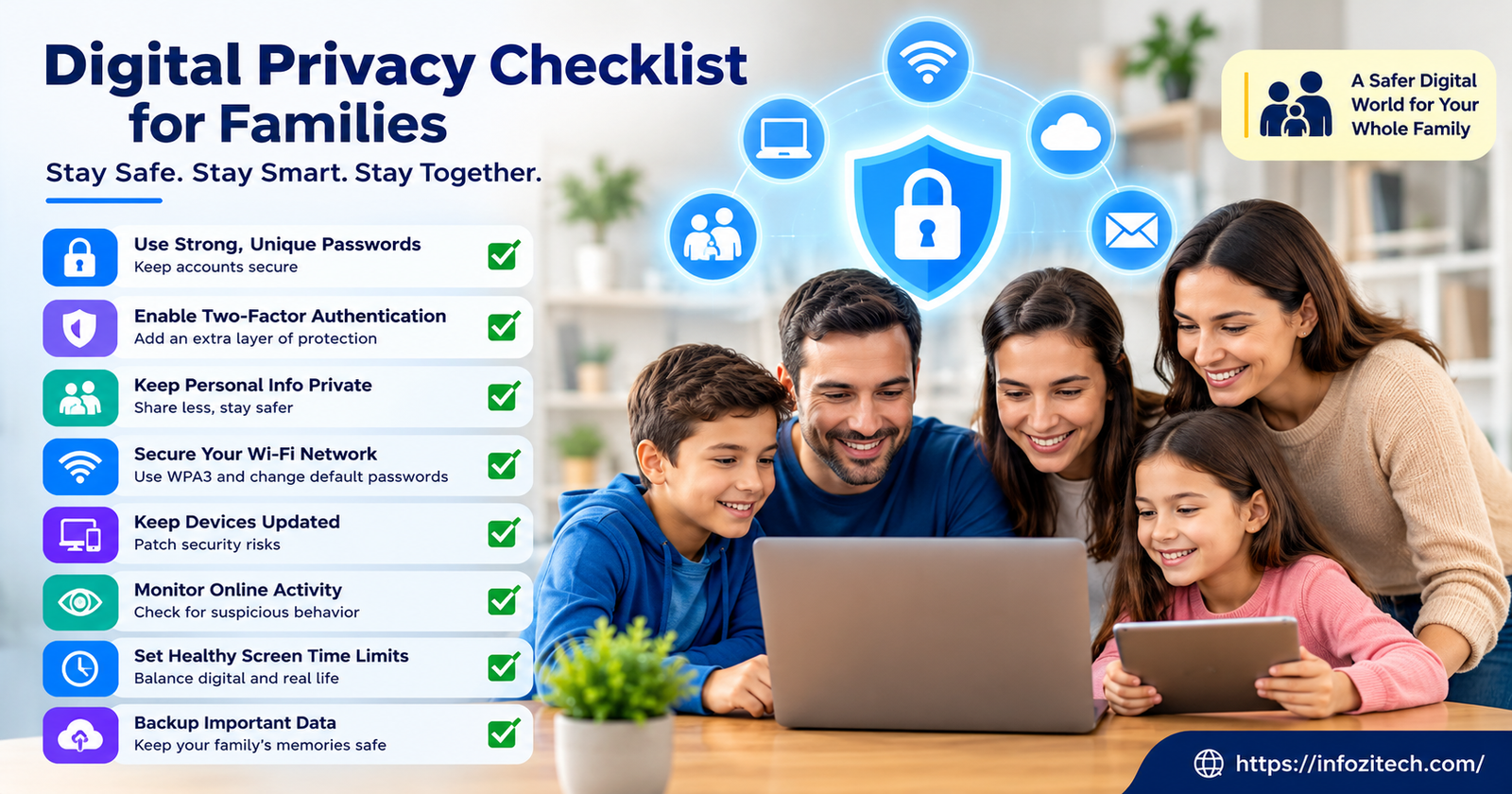
My router password was “password1” for, I want to say, four years. Maybe five. I only changed it because a friend who works in IT glanced at my phone screen, saw the Wi-Fi name and password autofill, and just went quiet for a second. That silence told me everything. So this checklist isn’t me lecturing from some ivory tower of perfect security hygiene — it’s mostly things I learned the annoying way, after the fact, usually while fixing a mess instead of preventing one.
Here’s the thing about digital privacy in a house full of people: nobody thinks about it until something’s already wrong. An ad that’s a little too specific. A message from a stranger on your kid’s game app. The smart speaker picking up a conversation it had no business hearing. Then it’s 11 p.m., you’re Googling “how to protect family online” with forty tabs open, and none of it adds up to an actual plan.
So let’s make an actual plan. Organized by device, by person, by habit — the way privacy actually breaks down in a real household, not the way a textbook would organize it.
Why Family Digital Privacy Actually Matters
I’ll be honest, I used to think “privacy” was a word people used when they had something to hide. Turns out that’s backwards. It’s not about hiding things. It’s about not leaving your front door propped open because you assumed nobody would walk by.
The Data Trail Kids Leave Behind
Kids generate a digital footprint before they can spell their own name, and I mean that almost literally — baby monitor apps, school portals, the tablet games, YouTube Kids, all of it quietly logging stuff in the background. Location pings. Voice snippets. Even facial data from the auto-tag feature in photo apps, sitting on a server somewhere, indefinitely, because nobody went in and deleted it. And here’s the part that gets me: none of that goes away just because the kid grows up and forgets the app ever existed on their old iPad.
Shared Devices, Shared Risk
Every family I know shares stuff. Tablets get passed around, streaming logins get reused, the same four-digit passcode covers three devices. Convenient, sure. But it also means one weak link — one careless click, one reused password — and suddenly it’s not just your data exposed, it’s everyone’s. You can’t treat privacy as an individual thing in a house. It’s a household system, whether you planned it that way or not.
Real Consequences, Not Just Theoretical Ones
Identity theft targeting kids’ Social Security numbers is a real and growing thing, and it’s nastier than adult identity theft in one specific way — nobody checks a ten-year-old’s credit report, so the fraud can sit there undetected for a decade. Combine that with the risk of predatory contact on gaming and chat platforms, and you start to see this isn’t paranoia talking. It’s more like checking the smoke detector batteries. Boring, unglamorous, and genuinely worth doing.
Setting Up Your Home Network the Right Way
Everything funnels through your router. Every device, every login, every 2 a.m. YouTube binge — it all passes through that one little box, which makes it ground zero for this whole checklist.
Change Default Router Settings
Routers ship with admin logins like “admin/admin,” and an alarming number of people never touch that. Get into the settings page (usually by typing the router’s IP into a browser — check the label on the device itself) and change both the admin password and the actual Wi-Fi password. Go long instead of clever. A string of random unrelated words beats “P@ssw0rd!23” every single time, and it’s easier to remember too.
Create a Separate Guest Network
Most routers built in the last several years support a guest network. Use it. Smart plugs, visiting friends’ phones, the smart doorbell, anything that doesn’t strictly need to talk to your main devices — park it on the guest network. That way, if some cheap smart-home gadget gets compromised, it’s not sitting on the same network as your laptop.
Keep Firmware Updated
Nobody checks router firmware. I didn’t, for years. But those updates patch actual security holes, so set a reminder — quarterly works fine — or just turn on auto-updates if your router offers it, which most do now.
Turn Off Features You Don’t Use
Remote management, UPnP, WPS — convenient acronyms, sure, but also convenient doors for someone else to walk through. If you’re not actively using them, and most people aren’t even aware they exist, switch them off.
Locking Down Devices for Every Family Member
Different device, different risks. A tablet a six-year-old uses needs a totally different setup than the laptop you do your taxes on.
Smartphones and Tablets
Go through every device in the house, not just the adult ones — kids’ devices get skipped constantly, and that’s backwards. On iOS or Android, dig through app permissions one at a time. Does the flashlight app actually need your contacts? (No. It doesn’t. Ever.) Turn off ad personalization, kill location access for anything that doesn’t need it, and make sure updates install automatically instead of sitting there for months.
Laptops and Desktops
Turn on full-disk encryption — BitLocker if you’re on Windows, FileVault on a Mac — so a lost or stolen laptop isn’t just handing over everything to whoever finds it. Give each family member their own login instead of one shared account for the whole household, and keep the everyday browsing account off administrator privileges. Save the admin login for actual admin tasks.
Smart Speakers and Voice Assistants
These things are listening for a wake word basically all the time, and the recordings often live on a server somewhere you’ll never see. Go into the app and turn on auto-deletion for voice history — shortest window available. And just mute the mic when it’s not in use, especially in bedrooms. Feels obvious once you say it out loud, but almost nobody does it.
Smart TVs and Streaming Devices
Smart TVs use something called ACR — Automatic Content Recognition — that tracks what’s being watched, even stuff coming through an HDMI cable from a totally separate device like a game console. Dig into the settings menu (it’s usually buried three or four layers deep, annoyingly) and switch off ACR and anything labeled “viewing data.”
Protecting Kids Across Apps and Platforms
This is the part most families actually spend time on, and honestly, it’s where it matters most.
Set Up Age-Appropriate Accounts
Google’s Family Link, Apple’s Family Sharing, Microsoft Family Safety — set these up before a device lands in a kid’s hands, not after something goes sideways. They let you supervise downloads, screen time, content limits, all from one dashboard instead of chasing settings across five different apps.
Review Privacy Settings on Social and Gaming Apps
TikTok. Instagram. Discord. Roblox. YouTube. Every single one of these buries a privacy dashboard somewhere in the settings menu, usually several taps deep. Sit down with your kid and go through them together — set the account to private, kill precise location sharing, and turn off the ability for random strangers to DM.
Talk About What Not to Share
Settings can only do so much. At some point your kid needs to actually understand why posting their school’s name, or their address, or “home alone until 6” isn’t a great idea. Frame it as a skill, not a punishment — the same way you’d teach them to look both ways before crossing a street.
Monitor Without Becoming a Surveillance State
There’s a real difference between reasonable oversight and reading every single message your fifteen-year-old sends. Screen time dashboards and download approvals make sense for younger kids. As they get older, that has to shift toward actual conversation and occasional spot-checks — because heavy-handed monitoring tends to just push risky behavior somewhere more hidden, not eliminate it.
Managing Passwords and Accounts as a Household
This is where privacy efforts quietly fall apart, in my experience. Everything else can be locked down perfectly and then someone reuses “Summer2023” across six accounts.
Use a Family Password Manager
Get a password manager with a family plan. Everyone gets strong, unique passwords without needing to memorize any of them. Because let’s be real — kids and adults alike tend to reuse the same three passwords everywhere, and one leaked account becomes five leaked accounts real fast.
Turn On Two-Factor Authentication
Two-factor authentication adds a second step — a code texted to a phone, or generated by an app — beyond just the password. Turn it on for email, banking, anything tied to a kid’s identity like a school portal. It takes maybe ninety seconds to set up per account and it closes off a huge chunk of the easy attacks.
Freeze Children’s Credit
In the US, parents can freeze a kid’s credit file with all three major bureaus, and it costs nothing. Kids rarely have any credit activity at all, so any attempt to open something in their name is basically a flashing red light. This one step alone closes off one of the hardest-to-catch forms of identity theft out there.
Reviewing App Permissions and Data Sharing Regularly
Do a Quarterly App Audit
Pick a date — first weekend of the quarter, whatever’s easy to remember — and go through every phone in the house deleting apps nobody uses anymore. Old abandoned apps are a sneaky source of data leaks, mostly because nobody’s updating them or watching for problems, and they just sit there quietly collecting.
Check What Data Apps Are Actually Collecting
Both app stores now show a privacy label or “data safety” section before you even download something, listing what’s collected and whether it gets shared. Get in the habit of actually glancing at that before installing anything, especially for kids’ apps, where it matters more.
Opt Out of Data Broker Listings
Data brokers buy and sell personal info, including, unfortunately, information about kids in some cases. There are services that’ll file opt-out requests to these brokers on your behalf. It won’t make your family invisible, but it noticeably shrinks how much floats around out there for sale.
Building Better Habits, Not Just Better Settings
Make Privacy Checks a Recurring Household Task
Settings drift. An app update quietly resets a permission you turned off months ago. Someone gets a new phone. A kid finally gets their first device. Treat this stuff like changing furnace filters — a recurring line on the family calendar, not some one-time project you check off and never think about again.
Model the Behavior You Want to See
Kids notice everything, especially the stuff you’d rather they didn’t. If you overshare on social media, click every suspicious link, or ignore update prompts for six months, that’s the lesson they’re actually absorbing — not whatever you said during the one privacy talk you had.
Keep the Conversation Ongoing
Tech moves fast enough that a checklist from two years back is already stale in spots. Keep talking about new apps, new risks, new tools as they show up, instead of treating this like a single conversation you can have once and cross off forever.
Final Thoughts
None of this is about locking the internet down so tight nobody in the house can use it. It’s about closing the obvious gaps — the default router password, the forgotten app permission, the laptop with no encryption — so whatever risk is left over is actually worth worrying about. Start with the router. Work through the devices. Have the honest conversations with your kids. Come back to this every few months, because you will forget, everyone does. That’s really the whole trick to staying a few steps ahead of most of this stuff.








2 thoughts on “Digital Privacy Checklist for Families: A Practical Room-by-Room Guide”