
Portable SSD Backup Workflow: A Practical Guide That Actually Works
I lost a semester of photos once. Not dramatically — no flood, no fire, just a laptop that wouldn’t boot one Tuesday morning and a backup plan that existed only in my head, which turns out counts for nothing. That’s the thing about backups. Everyone nods along when you bring them up, then does absolutely nothing about it until it’s too late to matter.
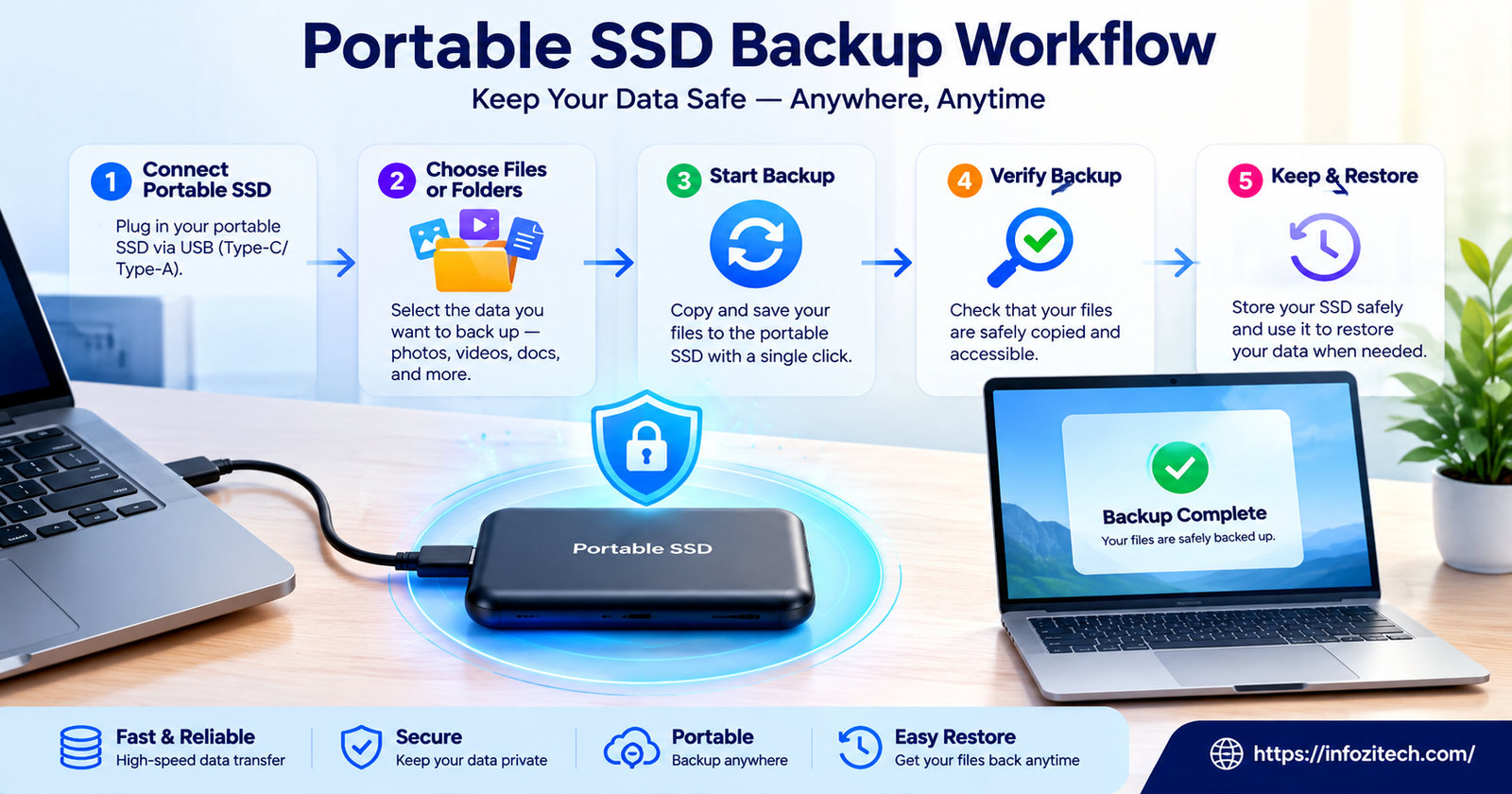
A portable SSD backup workflow fixes this, and it’s honestly less work than people assume. Not zero work. But less. This is a walkthrough of how to actually set one up — not the theoretical version, the version that survives contact with your actual life, your actual laziness, your actual Tuesday mornings.
Why Portable SSDs Make Sense for Backups
External hard drives had a good run. Cheap, roomy, did the job. But they’ve got spinning platters inside, actual moving parts, and moving parts hate being dropped. Or jostled and/or left in a hot car for three hours while you’re at a wedding, which — don’t ask.
SSDs skip all that. No moving parts means no delicate mechanism to wreck when your bag hits the pavement. They’re smaller too, and faster, and if you’re the type who tosses a drive into a backpack next to your water bottle and a granola bar that’s been in there since March, an SSD just tolerates that lifestyle better.
Speed Matters More Than You’d Think
Try backing up a few hundred gigs of photos to a slow drive sometime. You’ll watch the progress bar for an hour, give up, close the laptop, and just… not finish it. A decent SSD over USB-C cuts that same job down to minutes. And this matters more than it sounds like it should, because the backups that take five minutes are the ones that actually happen. The ones that take ninety get postponed. Forever, usually.
Durability for Real-World Use
Some portable SSDs are rated for drops, some even for a splash of water. Doesn’t mean treat it like a hockey puck, but it does mean the occasional bump — getting knocked off a desk, sitting under a stack of books for a week — probably won’t kill it the way it would a hard drive.
Choosing the Right Portable SSD for Your Needs
Depends entirely on what you’re stuffing onto it, honestly.
Storage Capacity
If it’s mostly Word docs and tax PDFs and the odd vacation photo, 500GB covers you fine. If you shoot raw photos or edit video — anything with big files — go bigger. 1TB minimum, probably 2TB if you can swing it. And here’s a thing nobody tells you: buy more than you think you need right now, because six months from now you’ll have somehow filled it anyway. It always happens.
Connection Type
USB-C is the default now; it works with basically anything made in the last several years. Thunderbolt is faster and pricier, worth it if you’re hauling 4K footage around regularly. If not — skip it, you’re paying for speed you won’t use.
Build Quality
A drive living on your desk doesn’t need armor. A drive going into a camera bag on a trail somewhere does. Match the toughness to where the thing actually lives.
Setting Up Your Backup Structure
Don’t just start dragging folders onto the drive. I mean you can, but you’ll regret it in about four months when you’re digging through unlabeled chaos trying to find one specific invoice.
Organize by Category, Not by Date Alone
Dating your folders feels organized, but it isn’t, not really — six months later you’re staring at a dozen folders named by month with zero memory of what’s inside any of them. Category first. Documents, Photos, Work, Personal. Dates go inside those, as subfolders, not as the whole system.
Keep a Consistent Naming Convention
Pick something like ProjectName_Date_Version and just… use it. Every time. It feels fussy for about a week, and then it saves your life the first time you’re hunting for “final_FINAL_v3_actually_final.docx” among nine nearly identical files.
Separate Active Work from Long-Term Storage
Two zones, roughly. Stuff you’re touching regularly, and stuff you’re just holding onto in case. Mixing them means your drive turns into a junk drawer within a couple months, and junk drawers are exactly what a backup system is supposed to prevent.
Building a Backup Routine That Sticks
The best system is whichever one you’ll actually keep doing. A fifteen-step ritual gets abandoned by week three, guaranteed.
The 3-2-1 Approach
Three copies, two kinds of storage, one copy somewhere else entirely. So: your working files on the computer, a copy on the SSD, another copy in the cloud or on a second drive at a different location — your office, a relative’s house, wherever. One method fails, you’re not staring at zero.
Automate Where You Can
I’ll be honest, manual backups are where most plans quietly die. You get busy, a week passes, then a month, and suddenly it’s been ages, and you’ve forgotten the drive even exists. Most computers have a built-in tool that’ll run backups automatically the second the SSD gets plugged in. Set it up once. Forget about it. That’s the whole point.
Set a Realistic Schedule
Not everyone needs to back up daily. If you edit video for a living, sure, daily, maybe more. If you mostly browse the internet and write the occasional document, weekly or every other week is plenty. Don’t copy someone else’s schedule — look at how often your files actually change and go from there.
Backing Up Different Types of Files
Different files, different needs. Obvious once you think about it, easy to ignore otherwise.
Photos and Videos
Usually the biggest files, usually the ones you’d be most upset to lose. Keep the originals untouched somewhere, and edited versions somewhere else — separate folders. Nothing worse than not being sure which file is actually the final export.
Documents and Work Files
Smaller, but they change constantly, so they deserve more frequent backups than your photo library does. And version control genuinely matters here. Overwriting the same file day after day means one bad edit can wipe out three weeks of work with no way back. Keep a few dated versions instead.
System and Application Data
Some people back up entire system images so a dead computer means a quick restore instead of reinstalling every single program from scratch. Takes more space, sure. Saves a miserable weekend if your machine ever actually dies.
Testing Your Backups
Nobody does this part. Everyone should.
Do a Trial Restore
Every couple of months, grab a few files off the backup and actually open them. Make sure they’re not corrupted, make sure they work. Takes five minutes, and it’s the difference between a backup and a hopeful guess.
Check the Drive’s Health
Some manufacturers bundle software that checks the drive’s condition and flags early wear. Worth glancing at now and then, especially if the drive gets heavy use — plugged in daily, carried around constantly, that sort of thing.
Replace Drives Before They Fail
SSDs don’t usually warn you before they go. Hard drives sometimes click or grind first — SSDs just quietly stop working one day. So swap yours out every few years as a precaution rather than waiting for a funeral for your data.
Keeping Your Backup Workflow Secure
A backup anyone can grab and open isn’t much of a backup, not if it’s got anything sensitive on it.
Use Encryption
Plenty of portable SSDs come with encryption built in, and if yours doesn’t, your operating system almost certainly has a way to add it. Lose the drive, someone finds it, they still can’t get in without the password. Worth the five minutes it takes to set up.
Store It Somewhere Safe
If your only backup sits right next to your laptop, you haven’t really solved anything — a fire or a break-in takes both at once. Keep the drive somewhere else. A different room, a different building even. Doesn’t need to be complicated, just needs to be separate.
Bringing It All Together
None of this is complicated, not really. Pick a decent drive, organize things in a way that actually makes sense to you, build a routine simple enough to survive a busy week, and check on it once in a while so you’re not trusting a system you’ve never actually tested.
The people who lose everything usually aren’t the ones who never heard of backups. They’re the ones who meant to set one up, kept meaning to, and never quite got there — same as I didn’t, that Tuesday morning. An hour with a portable SSD this week beats a much worse afternoon somewhere down the road.







1 thought on “Portable SSD Backup Workflow: A Practical Guide That Actually Works”